Attribution
This introduction to Linux is based on notes taken during the TCM Security - Linux 101 video course by Brent Eskridge, PhD.
We highly recommend this course as a great starting point for learning Linux; it was instrumental in our understanding of the subject. We would like to extend a big thank you to the TCM Security Team for providing such valuable resources!
Text Editors
Linux offers several text editors, ranging from simple to powerful. Here are two essentials every beginner should know.
Nano: The Beginner-Friendly Editor
Nano is straightforward and displays helpful shortcuts at the bottom of the screen. Here is how to use it:
# Open or create a file
nano example.txt

# Keyboard shortcuts (shown at bottom of screen):
# '^' means CTRL key    -- like ^G for Get Help
# 'M-' means ALT key    -- like M-E for Redo

M-X     # Disable help mode (toggle)
^C      # Show cursor position in the document
M-/     # Jump to end of file
M-\     # Jump to beginning of file
M-U     # Undo last change
M-E     # Redo last change

M-A     # Start selecting text
M-^     # Copy selected text
^U      # Paste text

# Cut and paste workflow:
^K      # Cut entire line (or selected text)
^U      # Paste it

^W      # Search for text
M-W     # Find next occurrence
M-Q     # Find previous occurrence

^O      # Save file (write out)
^X      # Exit editor
Vim: The Modal Editor
Vim is more powerful but has a learning curve. It operates in different modes (normal, insert, command).
# Open a file
vim file.txt

# In normal mode:
/       # Search forward
n       # Next match
N       # Previous match

:<line-number>  # Jump to specific line (e.g., :2 goes to line 2)
:$              # Jump to last line
G               # Also jumps to last line
Process Management
Understanding how to view and control running processes is essential for system administration and troubleshooting.
Viewing Processes with PS
The ps command shows a snapshot of current processes. By default, it only shows your processes from the current terminal.
# Common usage examples:

# All processes (BSD syntax) - most commonly used
ps aux | less -S

# All processes (UNIX syntax) - also common
ps -ef | less -S

# Hierarchical view showing parent-child relationships
ps -eH | less -S

# Alternative tree view
pstree | less -S

# All processes running as root, in user format
ps -U root -u root u | less -S

# The -S flag disables line wrapping in less, making output easier to read
Did You Know?
If you have read The Cuckoo’s Egg by Cliff Stoll, the command ps -eafg was one of the first clues that revealed the hacker was more familiar with AT&T Unix than Berkeley Unix. The -f flag (which lists each process’s files) does not exist in Berkeley Unix, which provides that information by default.
It is a fascinating read – we highly recommend it if you have not already.
- Title: The Cuckoo’s Egg: Tracking a Spy Through the Maze of Computer Espionage
- Author: Cliff Stoll
Understanding PS Output Columns:
UID     # User ID running the process (determines privileges)
PID     # Process ID (unique identifier)
PPID    # Parent Process ID (the process that started this one)
C       # CPU utilization percentage
STIME   # Process start time
TTY     # Terminal associated with the process (? means none—typical for background services)
TIME    # Total CPU time consumed by the process
CMD     # Command that launched the process
Real-Time Monitoring with Top:
top                     # Display live process list
# Default refresh: every 3 seconds (press 'd' to change)
# Default sort: by CPU usage (press 'P' to sort by CPU, 'M' by memory)
Managing Foreground and Background Processes
By default, commands run in the foreground, tying up your terminal. Here is how to manage them:
# Start a process in the background immediately
<command> &

# Suspend a running foreground process
[Ctrl+Z]                # Sends STOP signal; process pauses but remains in memory

# View suspended and background jobs
jobs

# Resume a suspended process in the background
bg

# Bring a background process to the foreground
fg

# If multiple processes are backgrounded:
#   + indicates the next process to foreground with 'fg'
#   - indicates the previous process

# Select a specific job to foreground
fg 3                    # Foreground job number 3
fg %xclock              # Foreground by process name
Process States and Signals
Processes move through different states during their lifecycle:
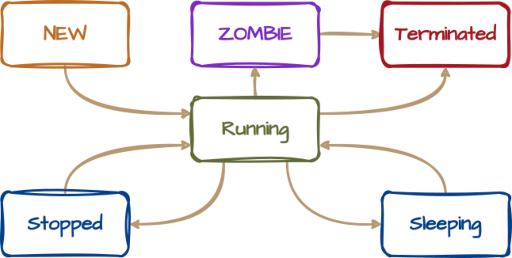
- Running: Currently executing on the CPU
- Sleeping: Waiting for a resource (I/O, network, etc.)
- Stopped: Paused after receiving a STOP signal (Ctrl+Z)
- Zombie: A process that exited but was not properly cleaned up by its parent
Common Signals:
# List all available signals
kill -l

# Important signals to know:
# 1  (SIGHUP)   - Hang up: Tells process to reload configuration files
# 9  (SIGKILL)  - Force kill: Process cannot ignore or handle this; immediate termination
# 15 (SIGTERM)  - Terminate: Politely asks process to shut down (default for kill command)
#                  Allows cleanup of temporary files; process can ignore this
# 19 (SIGSTOP)  - Stop: Pauses a foreground process (same as Ctrl+Z)
Sending Signals to Processes:
# Example: Start a process, find it, then terminate it
xeyes &
ps -ef | grep xeyes
# kill <PID>           # Sends SIGTERM (15) by default
kill 86723

# Force kill if SIGTERM does not work
kill -9 87390          # Sends SIGKILL; use sparingly

# Kill by process name (kills ALL matching processes)
pkill xeyes

# Example: killing multiple instances
xeyes &
xeyes &
pkill xeyes            # Both instances terminate
Pausing Execution:
sleep 5 # Pause for 5 seconds (useful in scripts)
Scheduling Tasks with Cron and Init
Cron (Scheduled Commands):
Cron is the standard scheduler for recurring tasks.
/etc/crontab           # System-wide cron file (for system maintenance)

# Anacron: For systems that do not run 24/7 (laptops, desktops)
# It ensures missed jobs run when the system comes back up

# View daily scheduled jobs
ls /etc/cron.daily/

# Edit your personal crontab
crontab -e

# Cron time format: minute hour day-of-month month day-of-week command
# Ranges:
#   minute: 0-59
#   hour: 0-23
#   day-of-month: 1-31
#   month: 1-12
#   day-of-week: 0-6 (Sunday to Saturday)

# Examples:

# Run at 1:05 AM on the 2nd of every month
5 1 2 * * touch /home/bob/cron/crontab-ran.txt

# Run at 1:05 AM and 1:05 PM on the 2nd of every month
5 1,13 2 * * touch /home/bob/cron/crontab-ran.txt

# Run every 5 minutes
*/5 * * * * touch /home/bob/cron/crontab-ran.txt

# List your cron jobs
crontab -l

# Remove all your cron jobs
crontab -r
Startup Scripts with Init.d:
To run tasks at boot time, add scripts to /etc/init.d/ and link them to the appropriate runlevel directory.
# View available runlevel directories
ls -d /etc/rc*.d

# Runlevels explained:
# 1: Single-user mode (recovery/debugging)
# 3: Multi-user text mode (servers)
# 5: Multi-user graphical mode (desktops)

# Example: Examining runlevel 5
ls -l /etc/rc5.d/

# Files start with S or K:
# S##: Start script (run when entering this runlevel)
# K##: Kill script (run when leaving this runlevel)
# The numbers determine execution order (lower numbers run first)
# All scripts are symlinks to /etc/init.d/
Regular Expressions
Regular expressions (regex) are patterns used to match text. They are incredibly powerful for searching, filtering, and transforming data.
Recommended Practice Tool: regexr.com
The Four Building Blocks
Building Blocks: Character Classes, Quantifiers, Roots, Anchors.
1. Character Classes:
[ABC]       # Match any single character in the set
[^ABC]      # Match any character NOT in the set (negated)
[A-Z]       # Match any uppercase letter (range)
[a-z]       # Match any lowercase letter
[0-9]       # Match any digit
\w          # Match any word character (letters, numbers, underscore)
\d          # Match any digit (same as [0-9])
.           # Match any single character (except newline)
\s          # Match any whitespace (space, tab, newline)
2. Quantifiers:
+           # One or more of the preceding token
*           # Zero or more of the preceding token
{min,max}   # Between min and max occurrences (e.g., {0,3})
?           # Zero or one (optional)
|           # Alternation (OR operator)
3. Anchors (Position Markers):
^           # Start of string/line
$           # End of string/line
Practical Examples
# Match a date like "December 25, 2023" or "Aug 2, 2024"
^[A-Z][a-z]{2,}\s+[0-3]?[1-9],\s+[12]?[0-9]{0,3}$

# Match numbers 42 or greater
^4[2-9]|[5-9][0-9]|[1-9][0-9]{2,}$

# Match monetary values (e.g., $1,234.56)
^\$?\s*[1-9][0-9]{0,2}((,[0-9]{3})*|)(\.[0-9]{2})?$

# Using grep with regex (note: grep uses POSIX, not PCRE)
# \d does not work in standard grep; use [0-9] or [[:digit:]] instead

grep -E '^4[2-9]|[5-9][0-9]|[1-9][0-9]{2,}$' numbers.txt
Replacement Patterns
When using regex for substitution:
$&          # Represents the entire matched string
$1, $2, $3  # Represents captured groups (text in parentheses)

# Example: Reformat date from MM/DD/YYYY to YYYY-MM-DD
# Pattern: ^([0-9]{2})/([0-9]{2})/([0-9]{4})$
# Replacement: $3-$1-$2
Tips for Building Regex
- Regex is greedy by default: Add
?after*or+to make it lazy (match as little as possible). - Build incrementally: Start with a simple pattern, test it, then add complexity.
- Prefer multiple simple expressions over one complex pattern.
- Test edge cases with both valid and invalid data.
- Comment your patterns if your tool supports the
x(extended) modifier.
Bash Scripting
Scripts automate repetitive tasks. Bash is the default shell on most Linux distributions.
Basics
Every script starts with a shebang (#!) telling the system which interpreter to use:
#!/bin/bash

# This is a comment
echo "Hello world"
Running Scripts:
# Method 1: Pass script to bash interpreter
bash hello-world.sh

# Method 2: Make executable and run directly
chmod +x hello-world.sh
./hello-world.sh
Using Variables:
#!/bin/bash

# Capture command output into variables
user=$(whoami)
hostname=$(hostname)
directory=$(pwd)

# Display information
echo "User: [$user] Host: [$hostname] Directory: [$directory]"
echo "Contents:"
ls
Control Structures
If Statements:
#!/bin/bash

# Check if /etc/ is a directory
if [[ -d /etc/ ]]; then
    echo "/etc/ is indeed a directory"
fi

# Check if file exists
if [[ -e sample.txt ]]; then
    echo "The file sample.txt exists"
else
    echo "The file sample.txt does NOT exist"
fi

# String comparison
TEST_VAR="test"
if [[ $TEST_VAR == "test" ]]; then
    echo "TEST_VAR has a value of 'test'"
elif [[ $TEST_VAR == "again" ]]; then
    echo "TEST_VAR has a value of 'again'"
else
    echo "TEST_VAR has an unknown value"
fi
Comparison Operators:
- Numbers:
-ne(not equal),-eq,-gt(greater than),-ge,-lt(less than),-le - Strings:
==,!=(not equal),<(less than),>
#!/bin/bash

# create variables
x=1
echo x=["$x"]
y=2
echo y=["$y"]
z=2
echo z=["$z"]

# numeric -- not equals
if [[ "$x" -ne "$y" ]]; then
    echo ["$x"] ne ["$y"]
fi

# numeric -- equals
if [[ "$y" -eq "$z" ]]; then
    echo ["$y"] eq ["$z"]
fi

# numeric -- greater than
if [[ "$y" -gt "$x" ]]; then
    echo ["$y"] gt ["$x"]
fi

# numeric -- greater than or equal to
if [[ "$y" -ge "$z" ]]; then
    echo ["$y"] ge ["$z"]
fi

# numeric -- less than
if [[ "$x" -lt "$y" ]]; then
    echo ["$x"] lt ["$y"]
fi

# numeric -- less than or equal to
if [[ "$y" -le "$z" ]]; then
    echo ["$y"] le ["$z"]
fi

# ***************** string comparison ********************
a="A"
echo a=["$a"]
b="B"
echo b=["$b"]
anotherA="A"
echo anotherA=["$anotherA"]

# string -- equals
if [[ "$a" == "$anotherA" ]]; then
    echo ["$a"] "==" ["$anotherA"]
fi
# string -- not equals
if [[ "$a" != "$b" ]]; then
    echo ["$a"] "!=" ["$b"]
fi
# string -- less than
if [[ "$a" < "$b" ]]; then
    echo ["$a"] "<" ["$b"]
fi
# string -- greater than
if [[ "$b" > "$a" ]]; then
    echo ["$b"] ">" ["$a"]
fi
Case Statements:
#!/bin/bash

# Switch based on first command-line argument
case $1 in
    [1-3])
        message="Argument is between 1 and 3 inclusive"
        ;;
    [4-6])
        message="Argument is between 4 and 6 inclusive"
        ;;
    [7-9])
        message="Argument is between 7 and 9 inclusive"
        ;;
    1[0-9])
        message="Argument is between 10 and 19 inclusive"
        ;;
    *)
        message="Argument is missing or out of range"
        ;;
esac

echo $message
Loops
Definite Loops (For): Use when you know the iteration count beforehand.
#!/bin/bash

# Method 1: Explicit list
for i in 1 2 3 4 5; do
    echo "Index: [$i]"
done

# Method 2: Range expansion
for i in {1..5}; do
    echo "Index: [$i]"
done

# Method 3: C-style for loop
for (( i=1; i<=5; i++ )); do
    echo "Index: [$i]"
done

# Method 4: Iterate over files
for FILE in *.sh; do
    echo "File: [$FILE]"
    tail -n 1 "$FILE"
done
Indefinite Loops (While): Use when the iteration count depends on runtime conditions.
#!/bin/bash

# Countdown example
counter=5
while [[ $counter -gt 0 ]]; do
    echo "Countdown: [$counter]"
    counter=$((counter - 1))
done
echo "Blastoff!"
Working with Arguments
Scripts can accept command-line arguments:
$0: The name of the script.$#: Argument count.$@: Argument list (iterate-able -$0is not included).$*: Argument string (all of the args in one string).- Arg12 is
${12}not$12(=$1 and ‘2’).
#!/bin/bash

echo "Script name: [$0]"
echo "Argument count: [$#]"

# Iterate through all arguments
for arg in "$@"; do
    echo "Argument: [$arg]"
done

echo "All arguments as string: [$*]"

# Arguments 10+ need curly braces
if [[ "${12}" != "" ]]; then
    echo "Argument 12 is: [${12}]"
fi
Practical Example: Password Generator
Here is a script that generates memorable passwords from word lists:
#!/bin/bash

# Get command-line arguments
word_count=$1
separator=$2

password=''

# Count lines in word list
total_words=$(wc -l < ../wordlist.txt)

# Build password
for (( i=1; i<=word_count; i++ )); do
    # Generate cryptographically secure random number
    rand_hex=$(openssl rand -hex 4)
    rand_dec=$((16#$rand_hex))

    # Select random word
    word_index=$((rand_dec % total_words))
    random_word=$(sed -n "${word_index}p" ../wordlist.txt)

    # Capitalize first letter
    random_word=${random_word^}

    # Add separator between words
    if [[ $i -gt 1 ]]; then
        password="${password}${separator}${random_word}"
    else
        password="$random_word"
    fi
done

echo "$password"

# Usage: ./generate-password.sh 4 '-'
# Output example: Correct-Horse-Battery-Staple