CHALLENGE INFORMATION
 | Platform: HackTheBox Collection: Beginner Track Challenge: Find The Easy Pass |
DESCRIPTION
Find the password (say PASS) and enter the flag in the form HTB{PASS}.
SUMMARY
We perform static analysis using Ghidra and dynamic analysis with OllyDbg to gain insight into the program’s behavior. We run the executable with sample data and track where it stores this data in memory, checking the surrounding environment to better understand the context. With this knowledge, we extract the password and verify it by running the executable again with the password as input.
Preparation
After reading the challenge description, we download the provided challenge files. There is only one file this time: Find The Easy Pass.zip.
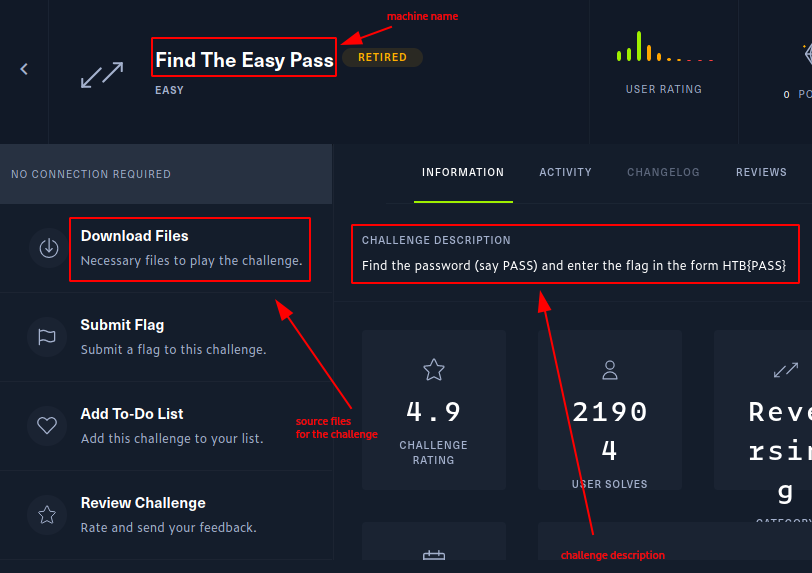
Figure 1: Downloaded challenge files
Once downloaded, we copy the provided SHA256 checksum and use it for integrity verification.
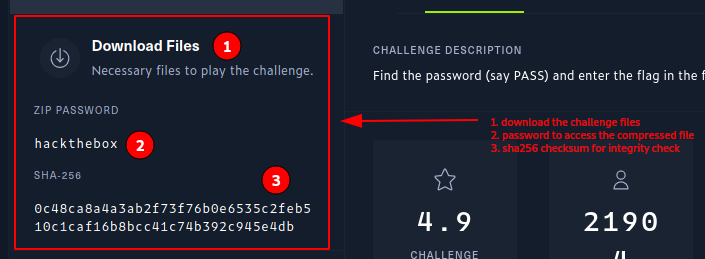
Figure 2: SHA256 checksum on challenge page
One convenient way to verify the checksum is to use the -c option with the sha256sum command.
user@kali:~$ ll
...
-rw-r--r-- 1 user user 206K ... 'Find The Easy Pass.zip'
user@kali:~$ echo "0c48ca8a4a3ab2f73f76b0e6535c2feb510c1caf16b8bcc41c74b392c945e4db  Find The Easy Pass.zip" | sha256sum -c
Find The Easy Pass.zip: OK
user@kali:~$
The file was not tampered with, so we decompress it.
user@kali:~$ unzip -P hackthebox Find\ The\ Easy\ Pass.zip
Archive:  Find The Easy Pass.zip
  inflating: EasyPass.exe
user@kali:~$ ll
...
-rw-r--r-- 1 user user 393K ...  EasyPass.exe
-rw-r--r-- 1 user user 206K ... 'Find The Easy Pass.zip'
user@kali:~$
Search for Strings
After determining the file type as a 32-bit Windows portable executable,
user@kali:~$ file EasyPass.exe
EasyPass.exe: PE32 executable (GUI) Intel 80386, for MS Windows
user@kali:~$
we store all printable strings in a separate file. This allows us to sort through them easily. For example, searching for all words starting with ‘pass’ (case insensitive) provides us with some ideas about where to look.
user@kali:~$ strings EasyPass.exe > easypass_strings.txt
user@kali:~$ cat easypass_strings.txt | grep -i -n pass*
1960:PasswordChar
3795:Wrong Password!
5158:Enter Password
5171:Check Password
user@kali:~$
This output suggests some login-related text. We use Vim to examine the environment where these words appear, hoping the password might be located nearby.
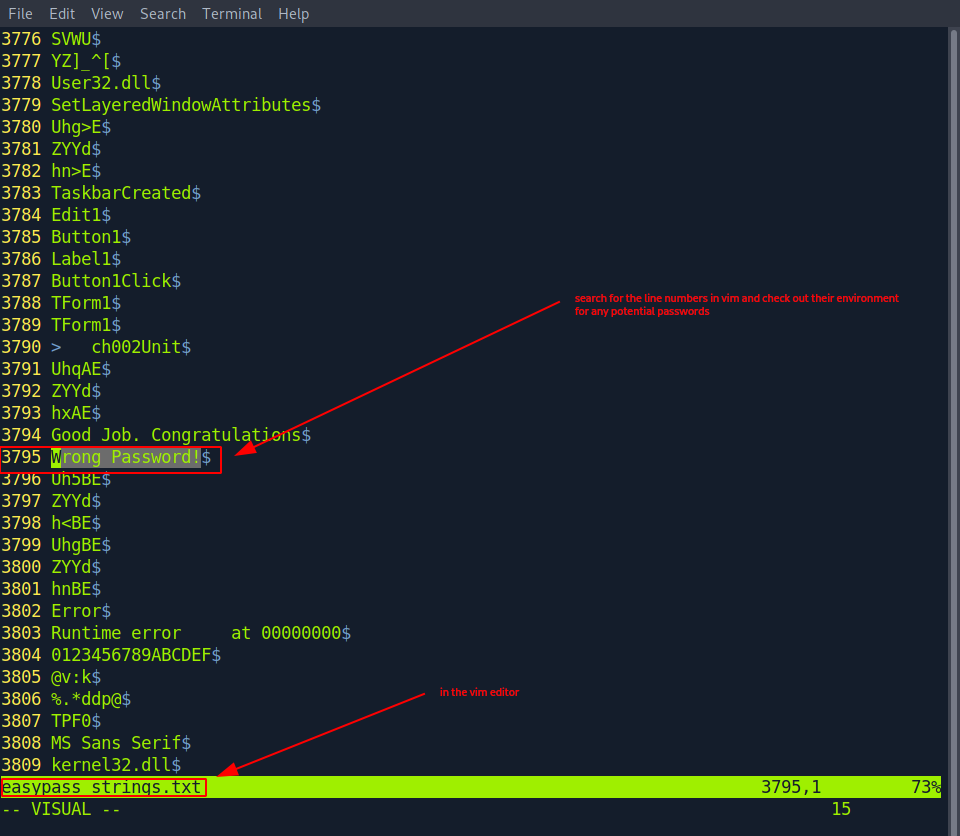
Figure 3: Examining strings output in Vim
We find nothing of value this time. Moreover, since the generated strings file contains more than five thousand entries,
user@kali:~$ wc -l easypass_strings.txt
5174 easypass_strings.txt
user@kali:~$
we decide to take another approach.
Running the Executable
We consider simply running the executable to observe its behavior. Note that this could be dangerous if the file were malware. However, another issue arises: running native Windows 32-bit applications on Linux (specifically the Pwnbox, which runs Parrot OS, a Debian-based distribution) does not work right out of the box.
After doing some quick online research, we settle on Wine as our solution. It comes already installed on the Pwnbox, so we attempt to run the executable.
user@kali:~$ wine EasyPass.exe
it looks like wine32 is missing, you should install it.
multiarch needs to be enabled first.  as root, please
execute "dpkg --add-architecture i386 && apt-get update &&
apt-get install wine32:i386"
...
user@kali:~$
The program does not run, but we receive helpful hints about follow-up instructions.
user@kali:~$ sudo dpkg --add-architecture i386 && sudo apt-get update && sudo apt-get install wine32:i386
...
Reading state information... Done
Some packages could not be installed. This may mean that you have
requested an impossible situation or if you are using the unstable
distribution that some required packages have not yet been created
or been moved out of Incoming.
The following information may help to resolve the situation:

The following packages have unmet dependencies:
 wine32:i386 : Depends: libwine:i386 (= 5.0.3-3) but it is not going to be installed
               Recommends: wine:i386 (= 5.0.3-3)
E: Unable to correct problems, you have held broken packages.
user@kali:~$
Neither does this approach work. Running the commands separately, however, seems to work.
user@kali:~$ sudo dpkg --add-architecture i386
user@kali:~$ sudo apt-get update
...
Reading package lists... Done
user@kali:~$
Now we must find a way to install the wine32 module. One quick fix we find online is the following:
user@kali:~$ sudo apt install -t parrot-backports wine32
...
The following additional packages will be installed:
  gcc-11-base:i386 glib-networking:i386 gstreamer1.0-plugins-base:i386
...
Scanning application launchers
Removing duplicate launchers or broken launchers
Launchers are updated
user@kali:~$
With everything finally prepared, we run the executable again.
user@kali:~$ wine EasyPass.exe
wine: could not load kernel32.dll, status c0000135
user@kali:~$
This fails as well. As before, looking up fixes online provides us with the answer.
user@kali:~$ mv ../.wine/ ../.wine-old/
user@kali:~$
We try again.
user@kali:~$ wine EasyPass.exe
wine: created the configuration directory '/home/user/.wine'
...
wine: configuration in L"/home/user/.wine" has been updated.
The program appears to be working, and we are presented with a password field. Trying some default credentials all lead to the same error message: ‘Wrong Password!’.
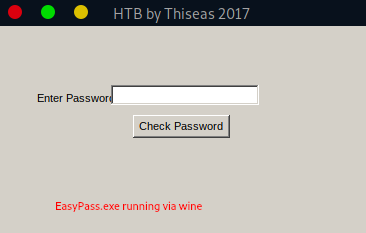
Figure 4: EasyPass.exe password prompt running in Wine
Static Analysis
Running the program does not reveal the password. Perhaps understanding how the program actually works will help. We set out to perform some reverse engineering.
We fire up Ghidra: Applications > Reverse Engineering > Ghidra; agree to the license conditions, create a new project, and import our executable. This should produce a similar screen:
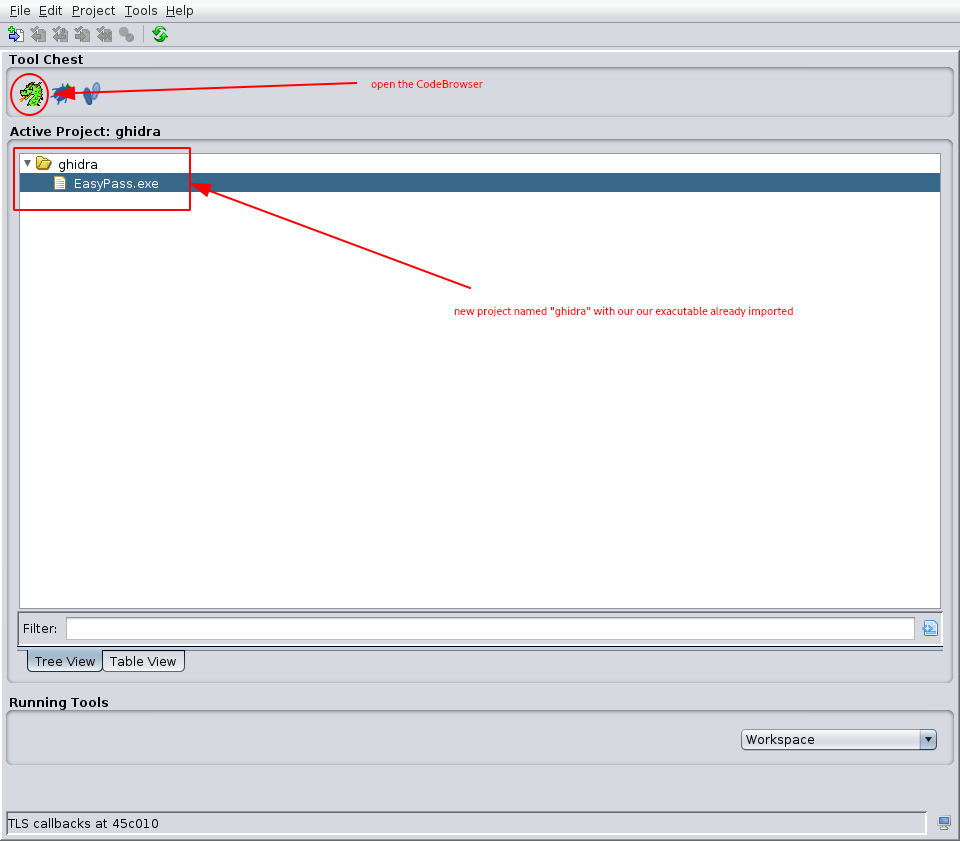
Figure 5: Ghidra project window with imported executable
Double-clicking our executable opens it in the CodeBrowser. Once opened, we run the automatic analysis that pops up.
Using Search > For Strings… and filtering for ‘Wrong Password!’ results in only one match. Selecting it (double-click the match) moves us to its place in the source code. From there, we can follow the function reference to the decompiled version.
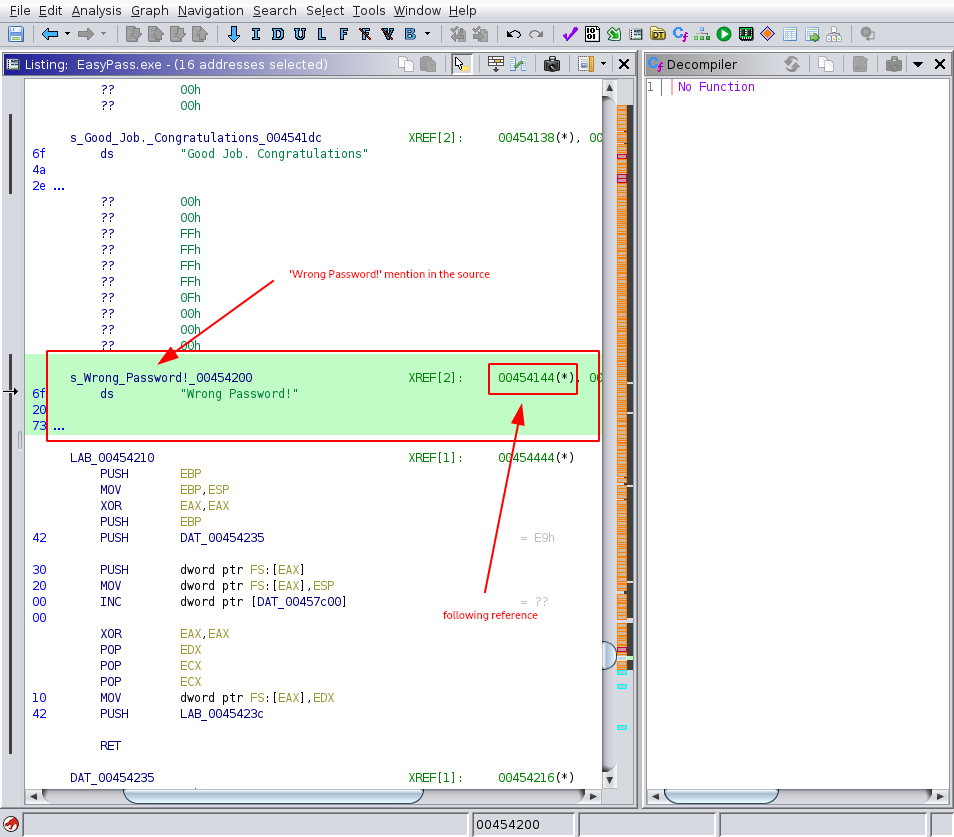
Figure 6: Cross-reference to password verification function
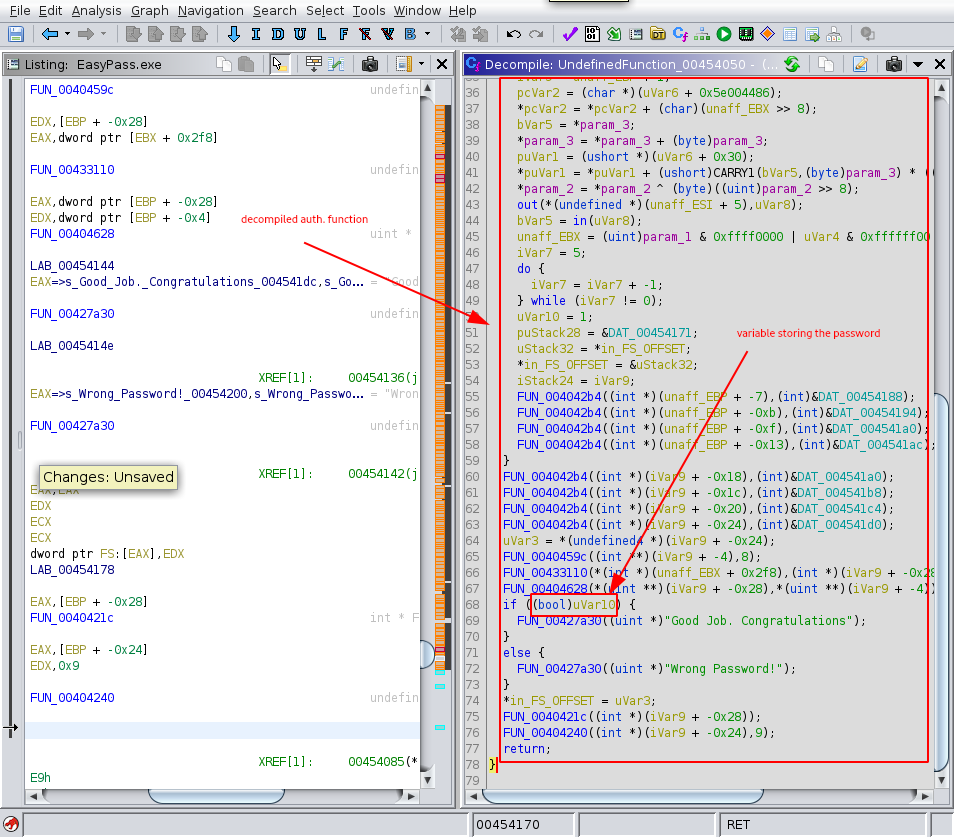
Figure 7: Decompiled password verification logic
One way to solve this challenge would be to use static analysis on this source code and reverse engineer the final password from it. Clearly, the uVar10 variable holds the password, and we would have to work from there step by step.
void UndefinedFunction_00454050(uint *param_1,byte *param_2,byte *param_3)

{
...
  undefined uVar10;
...
  uVar10 = (undefined4 *)(unaff_ESI + 1) == (undefined4 *)0x0;
...
  if (!in_CF) {
...
    uVar10 = 1;
...
  }
...
  if ((bool)uVar10) {
    FUN_00427a30((uint *)"Good Job. Congratulations");
  }
  else {
    FUN_00427a30((uint *)"Wrong Password!");
  }
...
  return;
}
Dynamic Analysis
Such an analysis would be quite a hurdle and require considerable time; therefore, we opt for dynamic analysis instead.
Installing OllyDbg happens to be both easy and quick.
user@kali:~$ sudo apt install ollydbg
...
The following NEW packages will be installed:
  ollydbg
0 upgraded, 1 newly installed, 0 to remove and 25 not upgraded.
...
Scanning application launchers
Removing duplicate launchers or broken launchers
Launchers are updated
user@kali:~$
Running ollydbg EasyPass.exe and
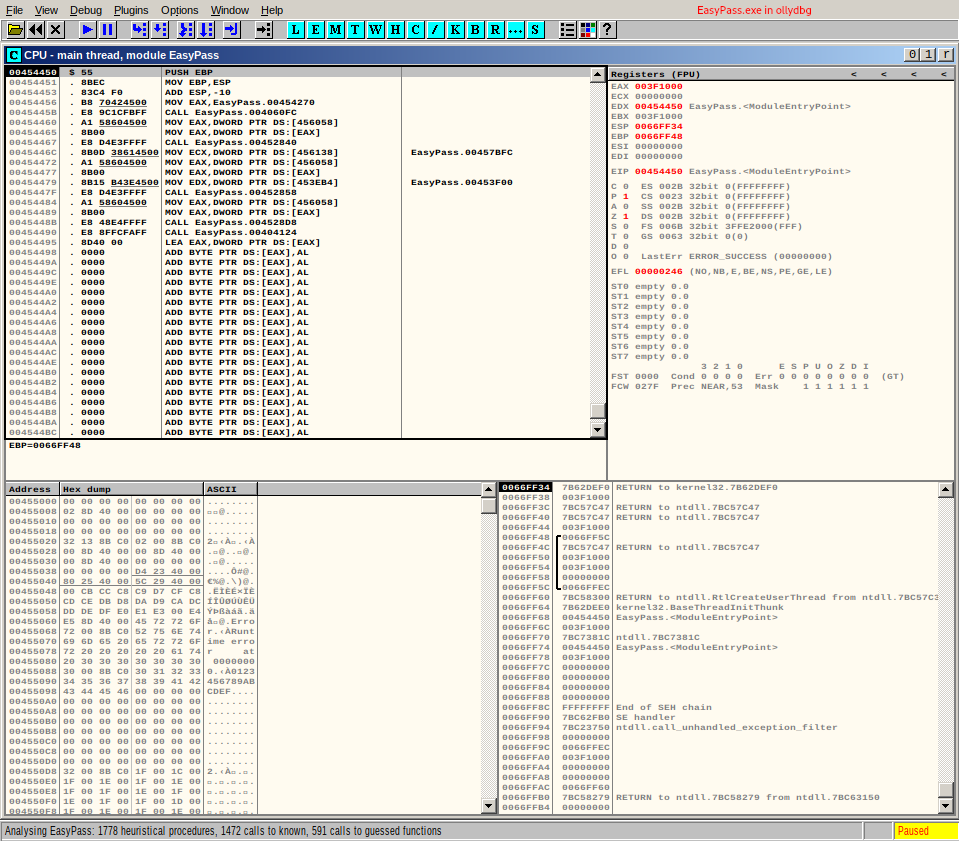
Figure 8: OllyDbg main interface after loading executable
choosing View > Executable modules > EasyPass should change our left-top window.
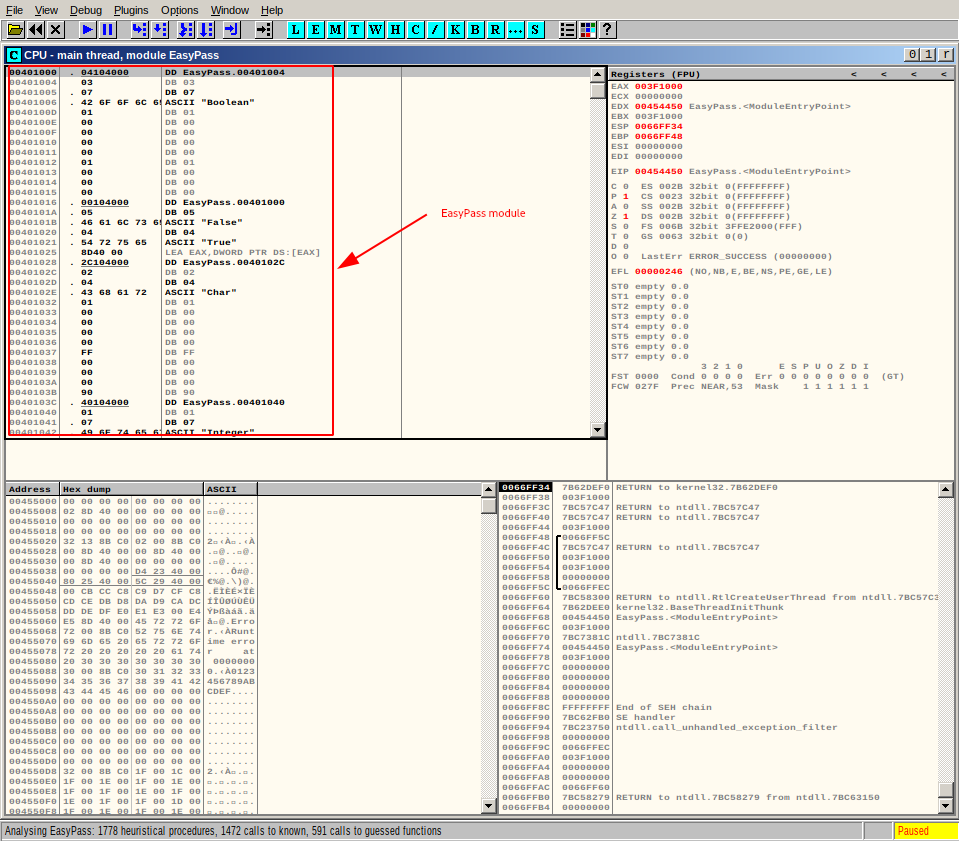
Figure 9: Executable modules view in OllyDbg
We search for the ‘Wrong Password!’ string: (Right-click in top-left window) > Search for > All referenced text strings > (Right-click in new window) > Search for text > ‘Wrong Password!’ > (Right-click on match) > Follow in Disassembler.
Now that we have found our place in the source code, we set a breakpoint here and run the executable.
Choosing (Right-click on ‘Wrong Password!’ match in top-left window) > Breakpoint > Toggle sets the breakpoint. We then start the program by clicking the play button.
Considering the breakpoint we just set, the execution will continue only until before the point where ‘Wrong Password!’ gets displayed. Then it will stop.
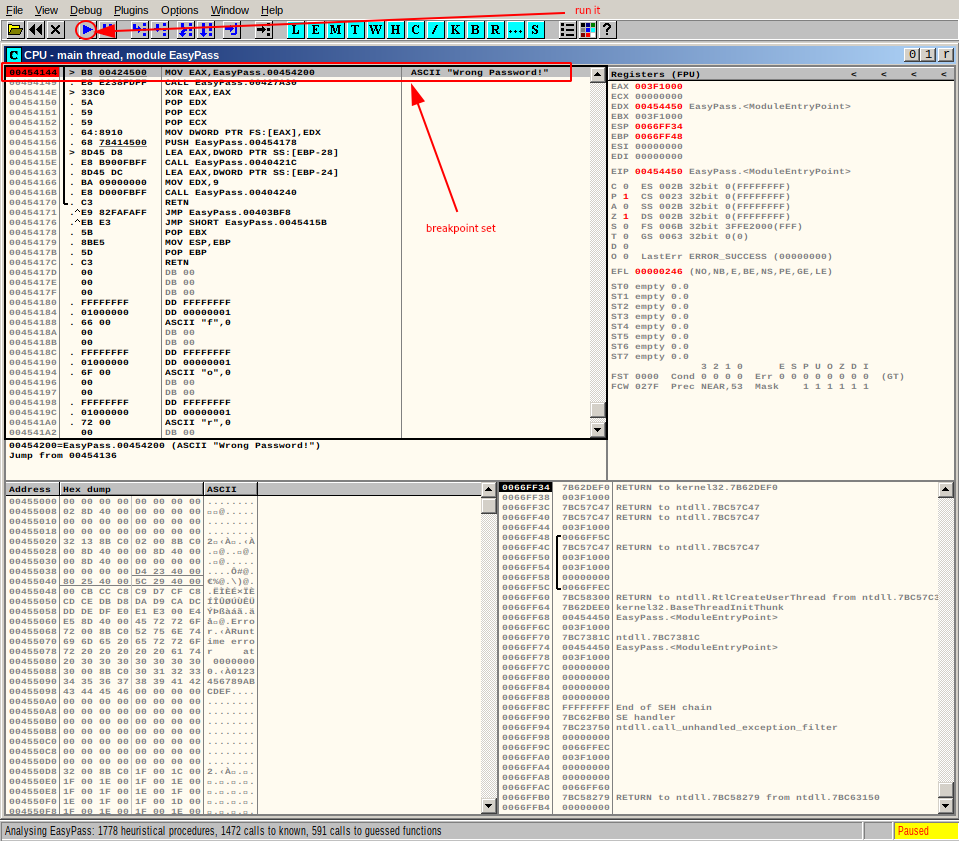
Figure 10: Breakpoint set at password verification routine
We start the program and wait until execution halts. Then we examine the bottom-right window, where the data surrounding our test input is displayed. Perhaps the real password is stored nearby.
The only other ASCII field besides our test input in the close environment contains the ASCII "<redacted-password>" string.
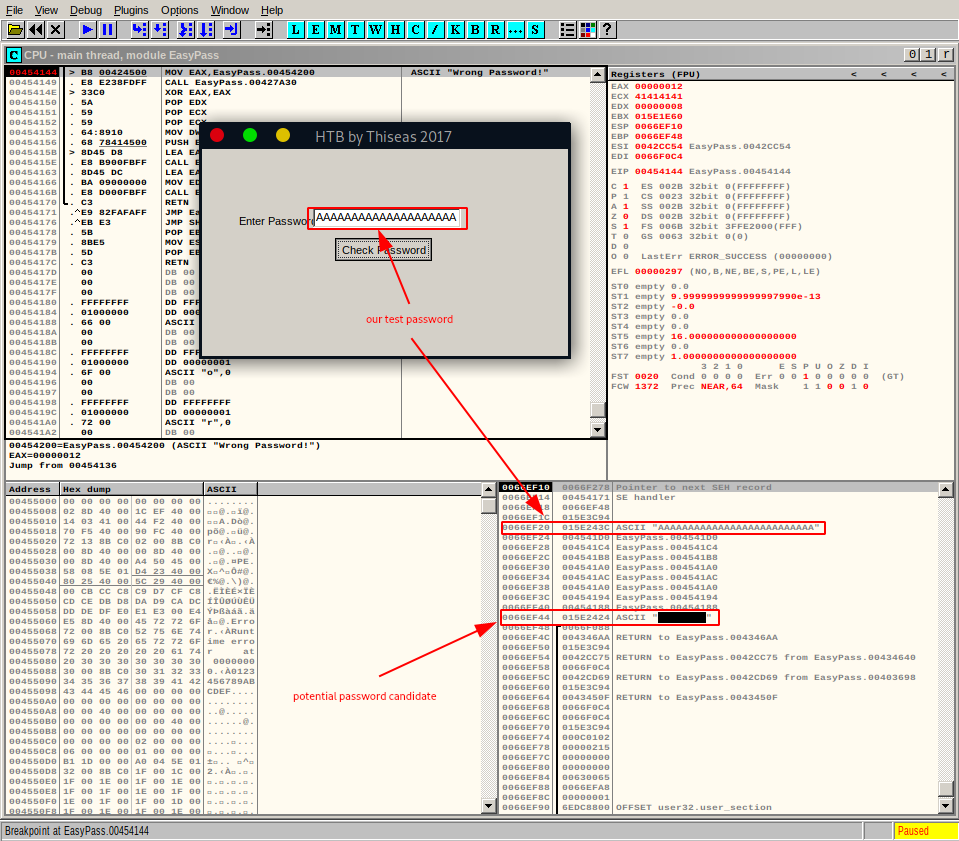
Figure 11: Memory view revealing password near test input
Verification
Could this be the password? Running EasyPass.exe with Wine and inputting the found <redacted-password> confirms it. We have our winner!
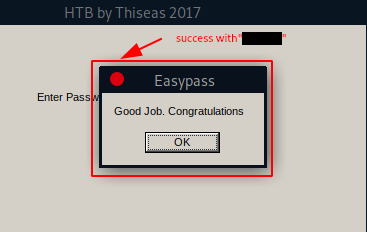
Figure 12: Successful password verification
Given that this was a challenge box without any instantiated targets, there is little to clean up here. Once we submit the password as HTB{<redacted-password>}, we move on to the next machine.