CHALLENGE INFORMATION
 | Platform: TryHackMe Event: Advent of Cyber 2025 Day: 06 Title: Malware Analysis - Egg-xecutable Bonus: Bonus Task |
Description
Discover some common tooling for malware analysis within a sandbox environment.
Summary
Here we show how to examine a suspicious Windows executable using static tools (PeStudio) and dynamic sandbox techniques (RegShot, ProcMon) to extract hashes, strings, registry changes, and C2 information.

Storyline
At night, TBFC’s SOC receives a 3 AM email from Elf McClause with HopHelper.exe, claiming a new rota program. Elf McBlue flags it as suspicious and initiates a malware investigation. The session covers malware analysis basics, sandboxes, static vs. dynamic analysis, and tools like PeStudio, ProcMon, and Regshot.
Theory
Malware analysis examines malicious files to reveal their behavior and devise defenses – for example, blocking attacker C2 servers or detecting artifacts left on hosts. The discipline splits into two categories: static analysis (inspecting without execution) and dynamic analysis (running the sample).
Sandboxes provide isolated, disposable environments – typically virtual machines with snapshot capability – where samples can be executed safely. We adhere to the core rule that dangerous code must never run on production systems.
Static Analysis: PeStudio
Static analysis extracts metadata from a malware sample without execution.
Key data points include:
- Checksums: Unique hashes for cataloguing and searching (for example, a93f7e8c4d21b19f2e12f09a5c33e48a).
- Strings: Readable text such as IPs, URLs, commands, or passwords (for example, 138.62.51.186).
- Imports: DLL functions the binary relies on, revealing OS interactions (for example, CreateFileW).
- Resources: Embedded assets such as icons that can be used for deception or to hide malicious code.
While static clues help form hypotheses, obfuscation can mask true behavior; execution through dynamic analysis is ultimately required for confirmation.
Dynamic Analysis: RegShot and ProcMon
Dynamic analysis runs a malware sample in a controlled environment to observe its runtime behavior and interactions with the operating system.
This tool creates two snapshots of the registry – one before the malware runs and another afterward – then compares them to identify changes.
This utility monitors and investigates how processes interact with the Windows operating system.
Questions and Answers
Question-1: Static analysis: What is the SHA256Sum of the HopHelper.exe?
F29C270068F865EF4A747E2683BFA07667BF64E768B38FBB9A2750A3D879CA33
Launch PeStudio > Load the executable – Desktop\hophelper\HopHelper.exe – into PeStudio > Click on the indicators tab in the dropdown > Look for the SHA256SUM.
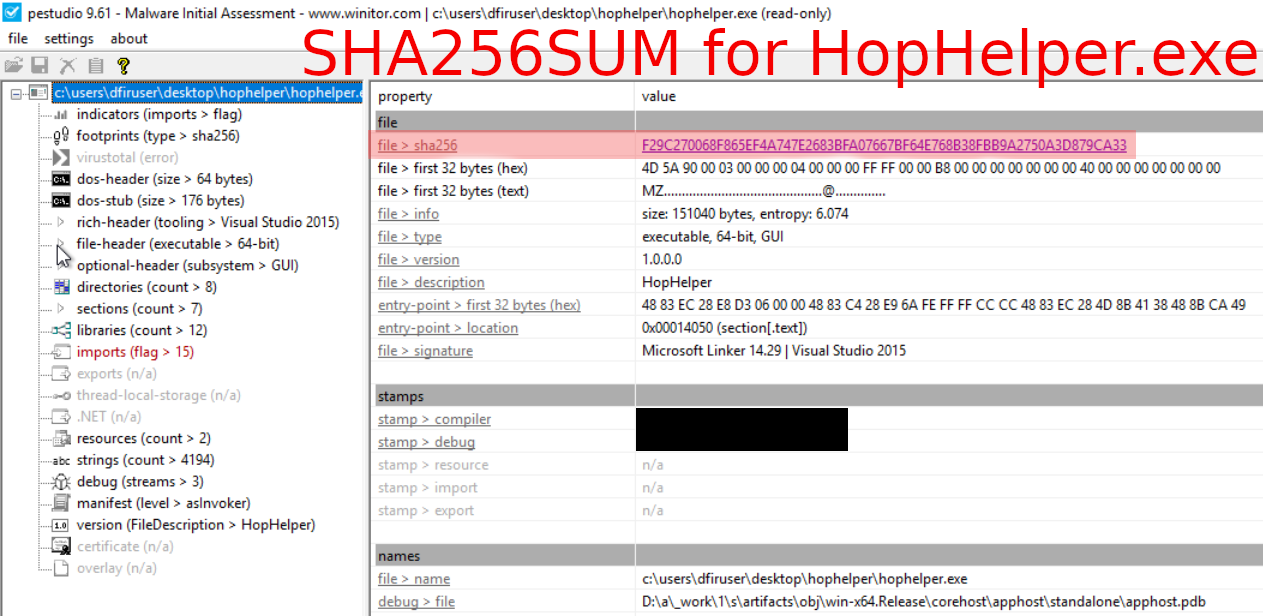
Figure 1: PeStudio indicators tab displaying the SHA256 hash of HopHelper.exe
Question-2: Static analysis: Within the strings of HopHelper.exe, a flag with the format THM{XXXXX} exists. What is that flag value? Note, this can be found towards the bottom of the strings output.
THM{<redacted-flag>}
Within PeStudio, loaded with the HopHelper binary, check on the strings tab in the dropdown and search for the ‘THM{…}’ string value.
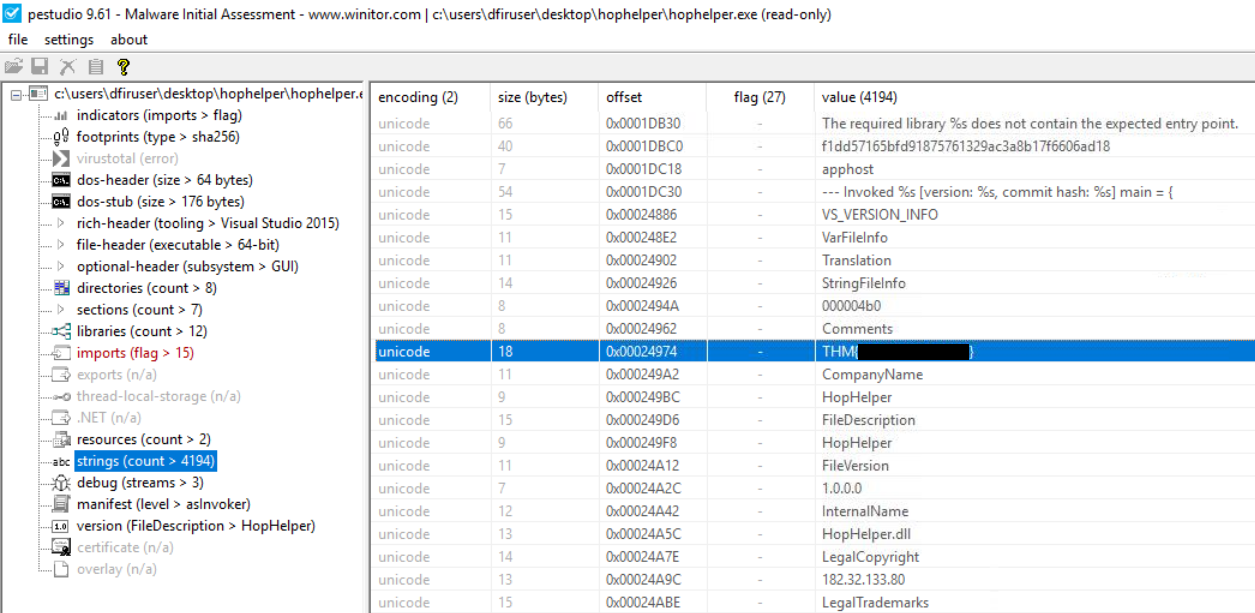
Figure 2: PeStudio strings tab revealing the hidden flag
Question-3: Dynamic analysis: What registry value has the HopHelper.exe modified for persistence? Note: Provide the full path of the key that has been modified
HKU\S-1-5-21-1966530601-3185510712-10604624-1008\Software\Microsoft\Windows\CurrentVersion\Run\HopHelper
Create a registry capture with Regshot, launch the malicious binary – HopHelper.exe – then create a second registry capture.
Check the differences between the two captures with Regshot’s Compare function to identify the modified registry values.
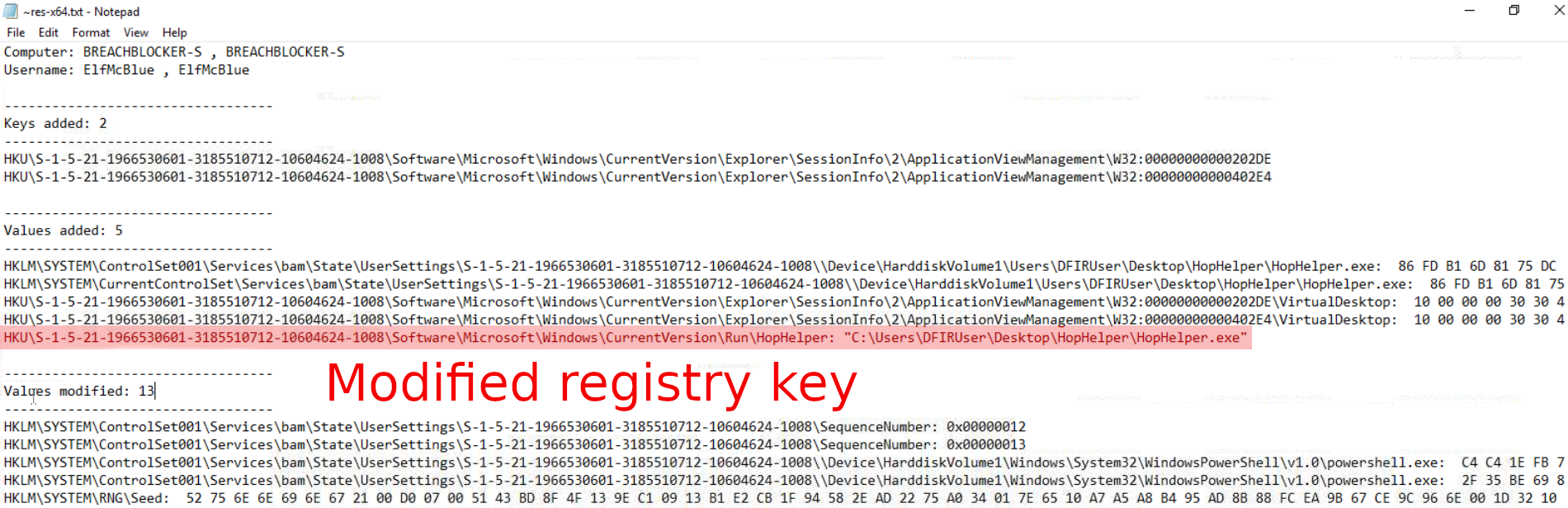
Figure 3: RegShot comparison showing modified registry keys for persistence
Question-4: If you enjoyed today’s room, feel free to explore both the Basic Static Analysis and Basic Dynamic Analysis rooms, where you can delve deeper into the techniques and tools discussed today.
No answer needed
Bonus Task
Bonus-Question: Can you find the web panel that HopHelper.exe is communicating with?
http://breachblocker-sandbox
Open ProcMon, start capturing events (default setting), execute the malicious binary, and stop capturing events.
Use the Filter function to narrow the search: first filter for the HopHelper.exe process name, then filter for Operations containing the word ‘TCP’. Only four such events appear. Examine the Path field to locate the C2 panel.

Figure 4: ProcMon filtered results showing TCP operations and the C2 domain
Once we identify the C2 panel, we can examine it with a web browser.
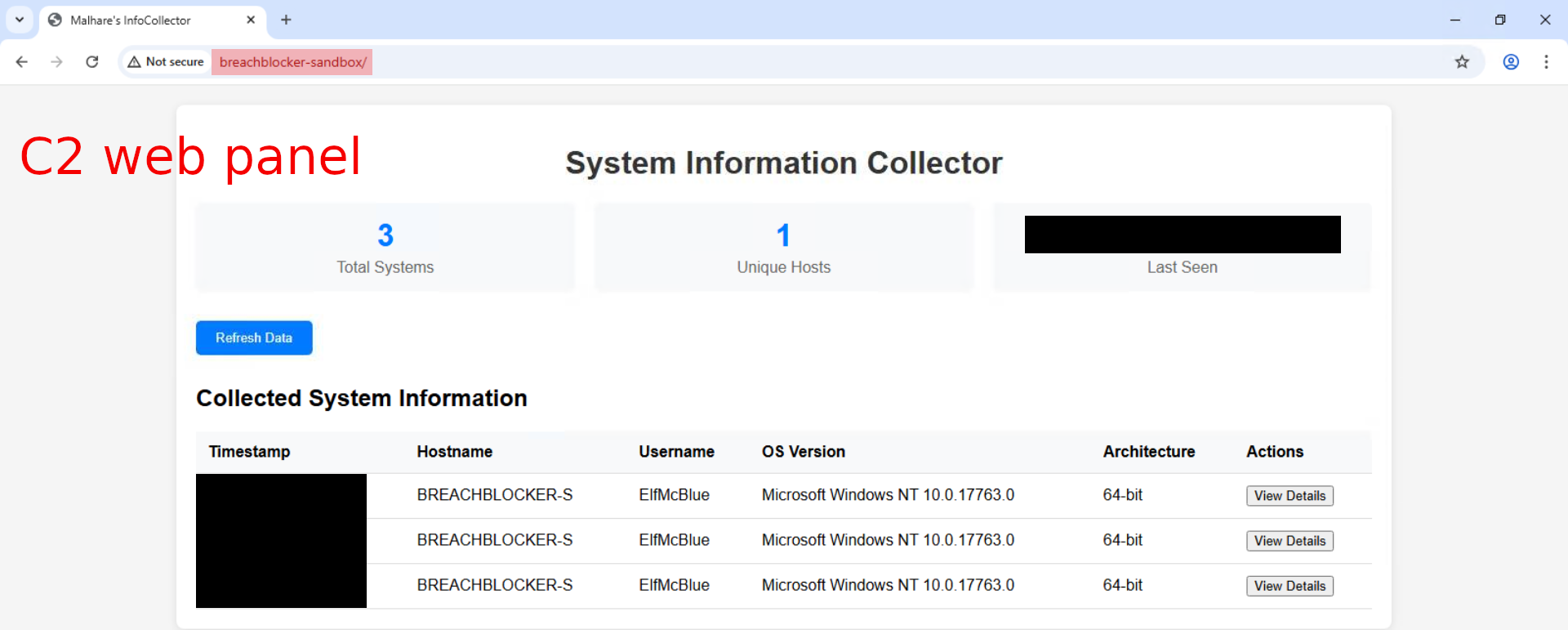
Figure 5: Command and control web panel interface