CHALLENGE INFORMATION
Platform: TryHackMe
Path: Pre Security
Module: How The Web Works
Room: HTTP in Detail
Description: Learn about how you request content from a web server using the HTTP protocol.
What Is HTTP(S)?
After reviewing the introduction to HTTP and HTTPS, we examined the static website provided in the task.
Notice how the lock symbol at the top of the page is crossed out, indicating that the connection is either insecure (connected via HTTP) or that there is an issue with the site’s certificate.
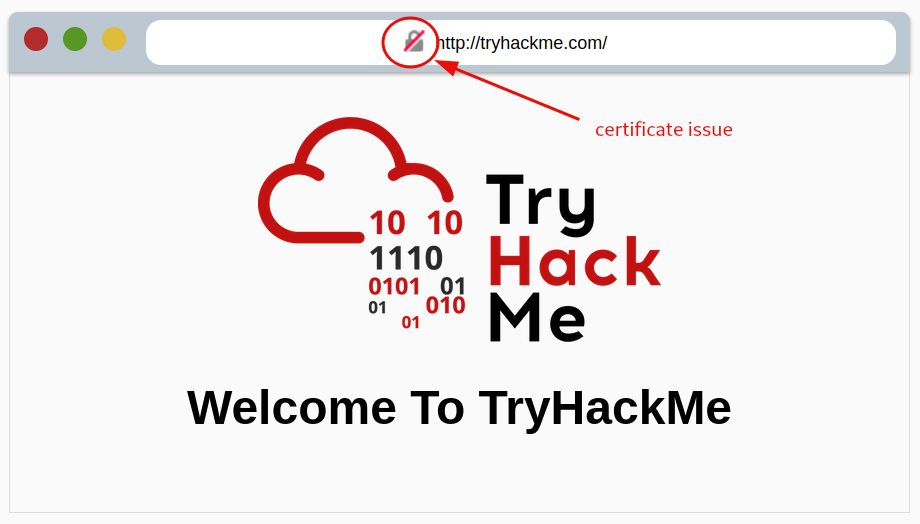
Figure 1: Certificate issue
We clicked the problem indicator to retrieve the flag.
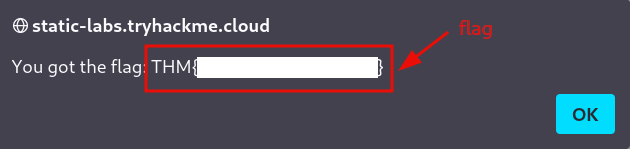
Figure 2: Certificate issue - redacted flag
Question 1: What does HTTP stand for?
HyperText Transfer Protocol
Question 2: What does the S in HTTPS stand for?
Secure
Question 3: On the mock webpage on the right there is an issue; once you’ve found it, click on it. What is the challenge flag?
<redacted-flag>
Requests and Responses
We examined the various features a URL may include in a request. The task also provides an example request and response pair.
Question 1: What HTTP protocol is being used in the above example?
HTTP/1.1
Question 2: What response header tells the browser how much data to expect?
Content-Length
HTTP Methods
We read the introduction to the most commonly used HTTP methods.
Question 1: What method would be used to create a new user account?
POST
Question 2: What method would be used to update your email address?
PUT
Question 3: What method would be used to remove a picture you’ve uploaded to your account?
DELETE
Question 4: What method would be used to view a news article?
GET
HTTP Status Codes
We reviewed the most common HTTP status codes and the different ranges with their respective meanings.
Deploying the site in this task helped us better understand how some HTTP status messages appear in practice.
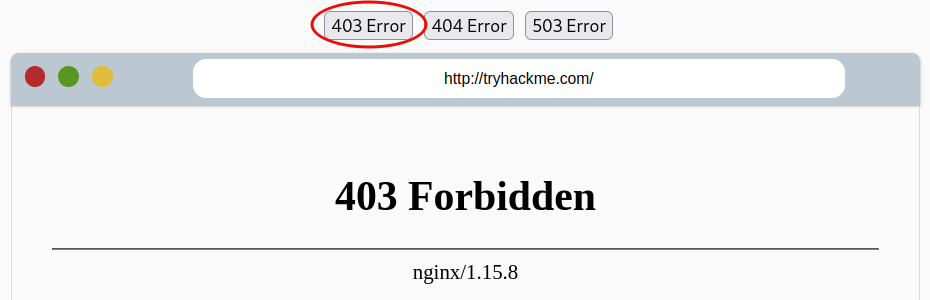
Figure 3: 403 error response
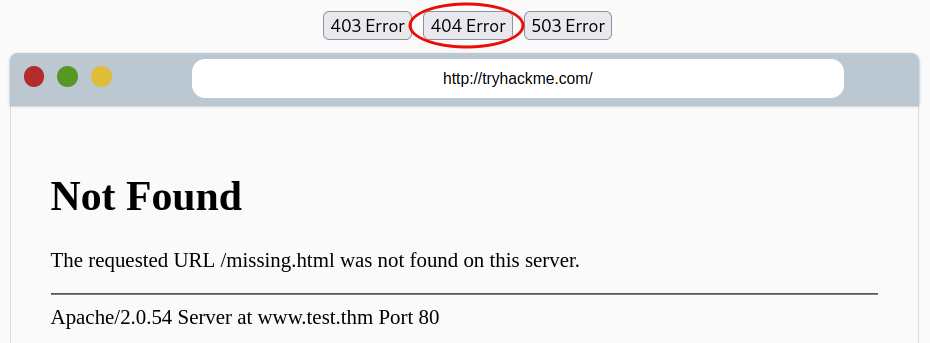
Figure 4: 404 error response
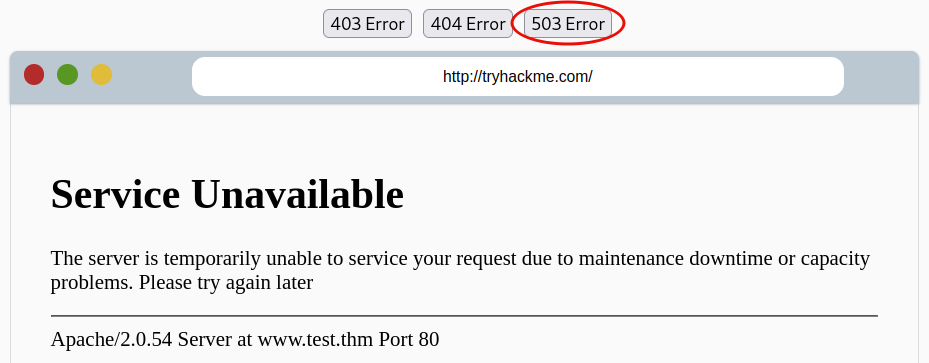
Figure 5: 503 error response
Question 1: What response code might you receive if you’ve created a new user or blog post article?
201
Question 2: What response code might you receive if you’ve tried to access a page that doesn’t exist?
404
Question 3: What response code might you receive if the web server cannot access its database and the application crashes?
503
Question 4: What response code might you receive if you try to edit your profile without logging in first?
401
Headers
We examined the most common request and response headers.
Question 1: What header tells the web server what browser is being used?
User-Agent
Question 2: What header tells the browser what type of data is being returned?
Content-Type
Question 3: What header tells the web server which website is being requested?
Host
Cookies
We read the introduction to cookies and how they are used.
To view our own cookies, we deployed the static site provided with the task and followed the guide to open Developer Tools in our browser. We then followed the instructions provided in the task.
We also examined the various methods for accessing developer tools in different browsers.
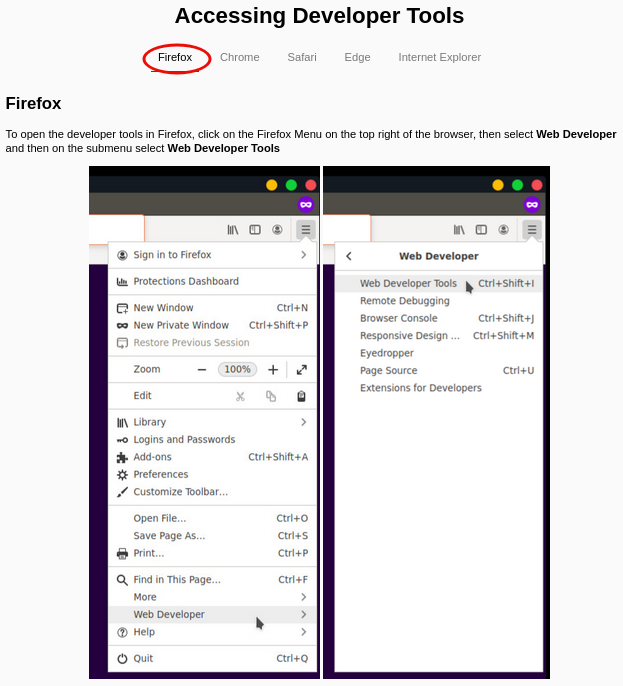
Figure 6: Developer tools in Firefox
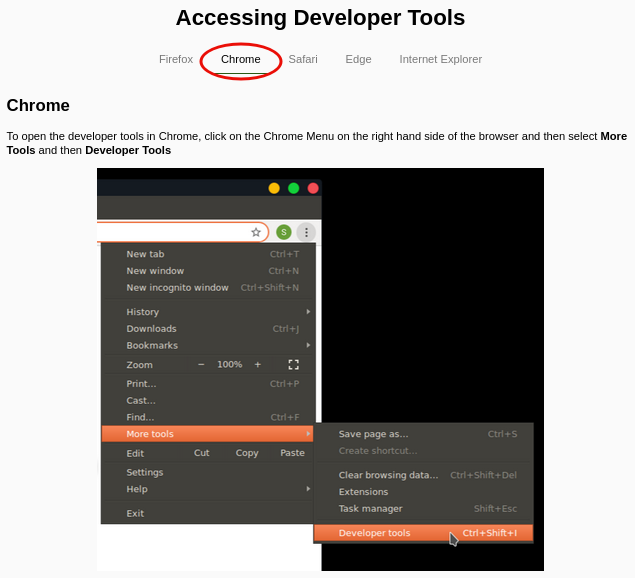
Figure 7: Developer tools in Chrome
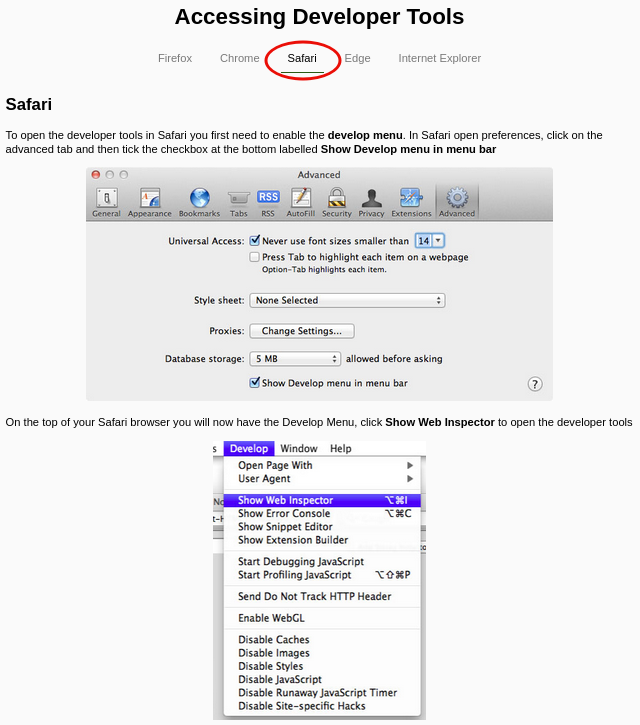
Figure 8: Developer tools in Safari
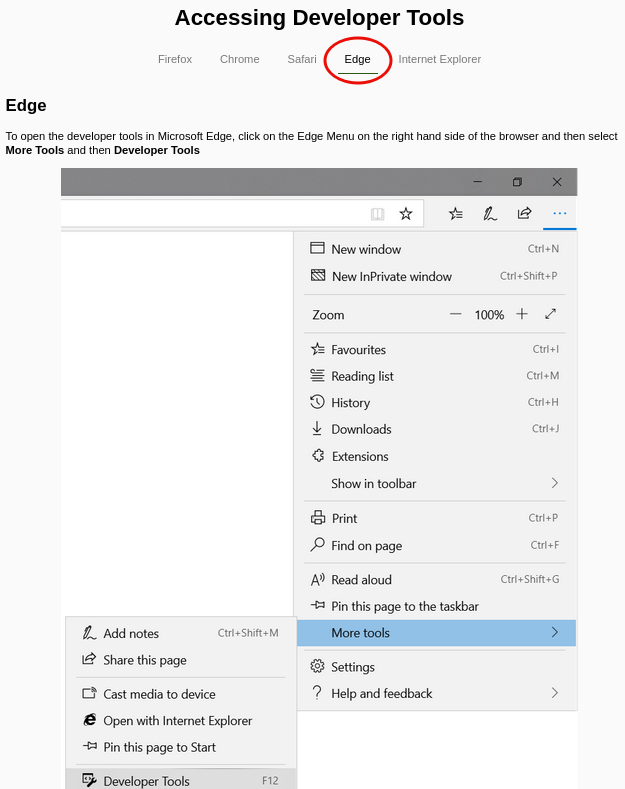
Figure 9: Developer tools in Edge
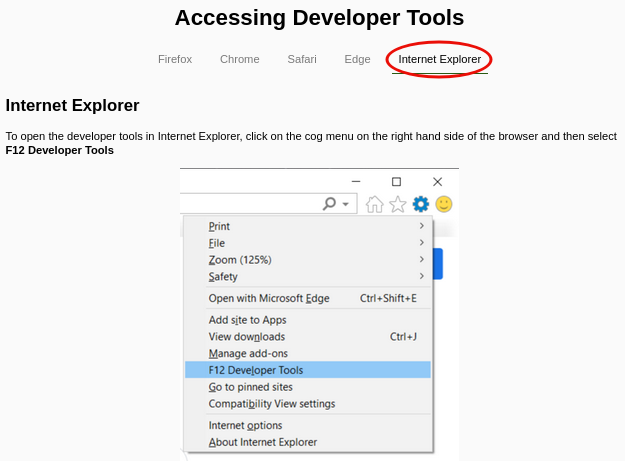
Figure 10: Developer tools in IE
Question 1: Which header is used to save cookies to your computer?
Set-Cookie
Making Requests
We created sample requests using the emulator provided in this task.
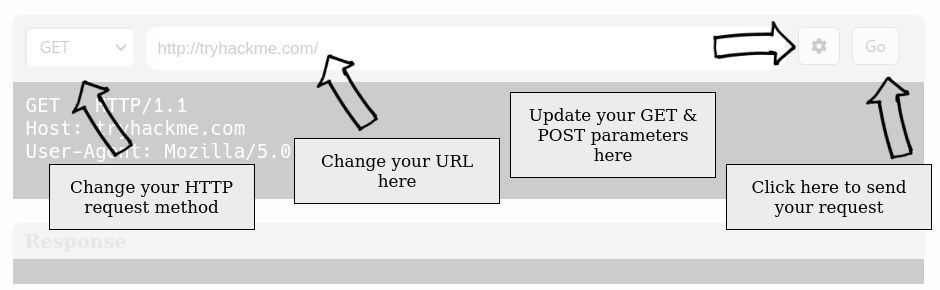
Figure 11: How to create requests guide
We examined how configuring the request method and setting the URL modifies our request. For the first question, only the URL needed adjustment.
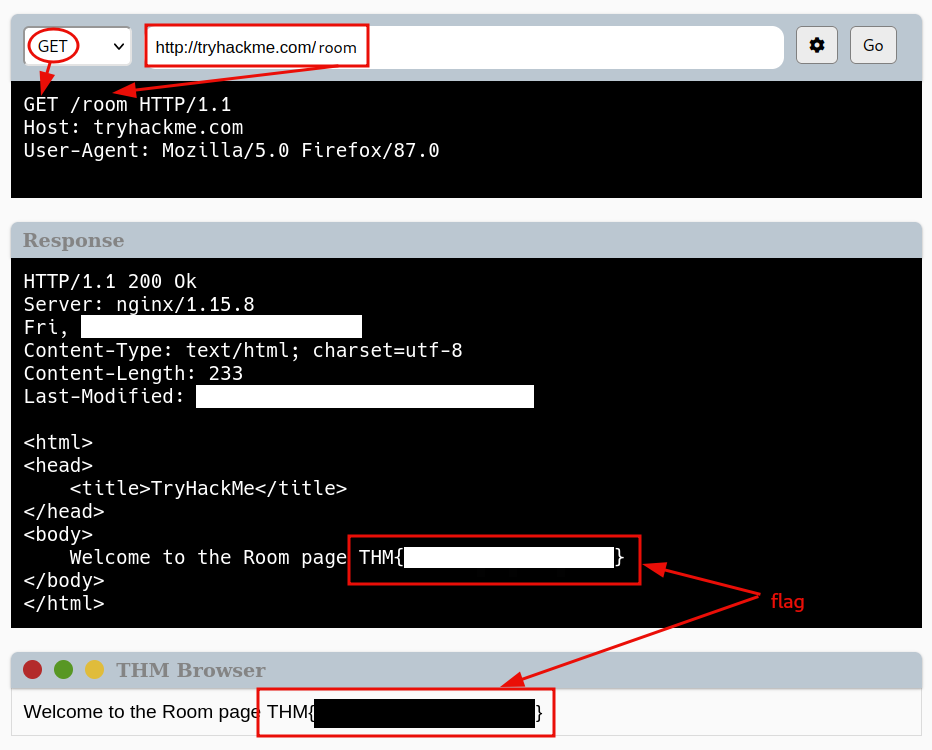
Figure 12: Redacted flag
First, we set the id parameter to 1 and then adjusted the URL to answer the second question.
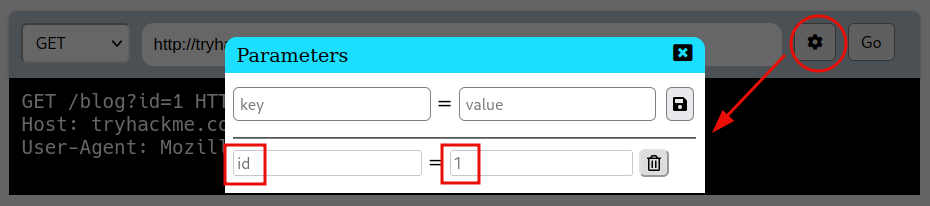
Figure 13: Parameter manipulation
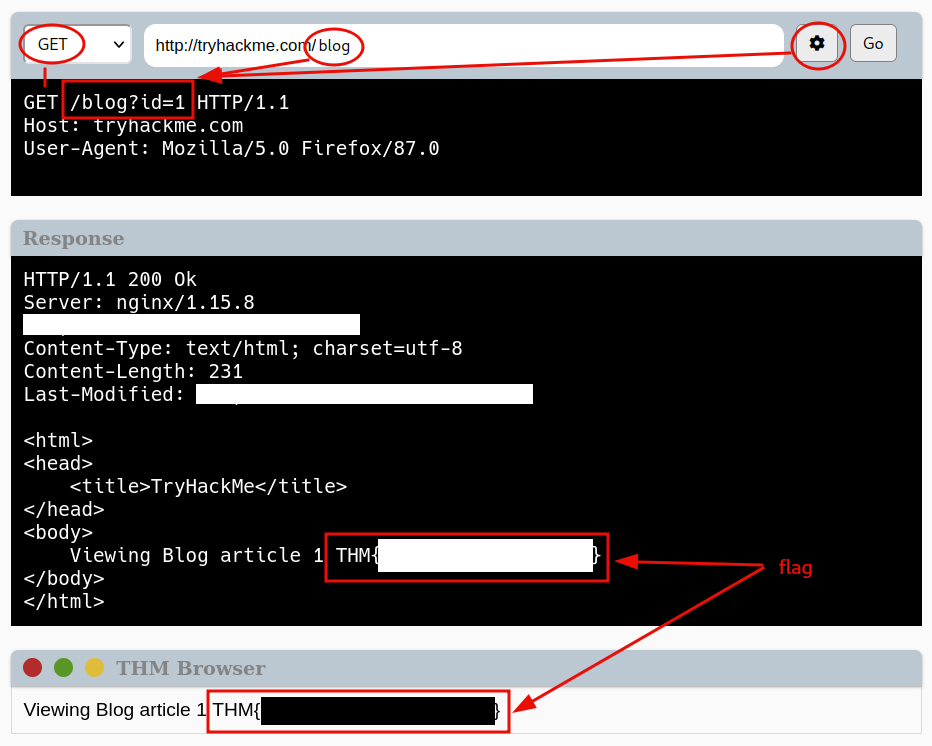
Figure 14: Adjusted endpoint
We cleared the set parameters before proceeding with the third question.
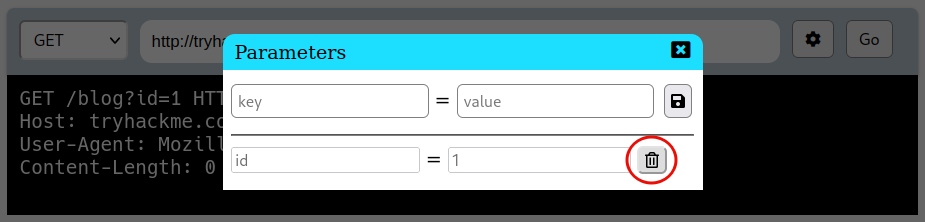
Figure 15: Parameter reset
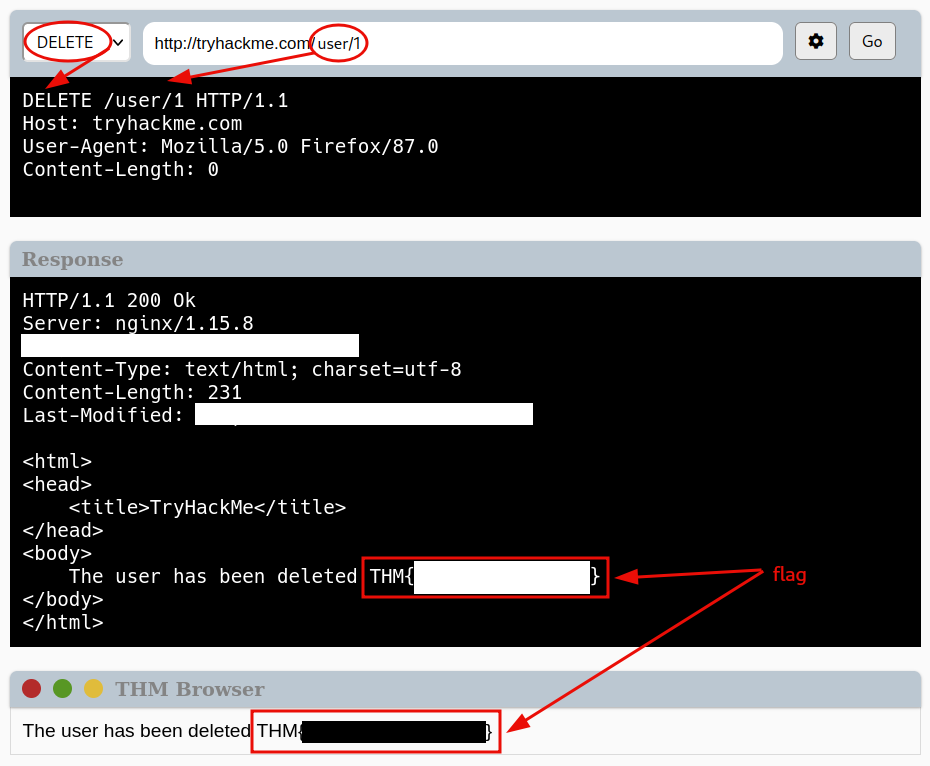
Figure 16: Using HTTPs DELETE request method
For the fourth question, we first set the username parameter to admin before sending the request. This updated the username value displayed on the website.
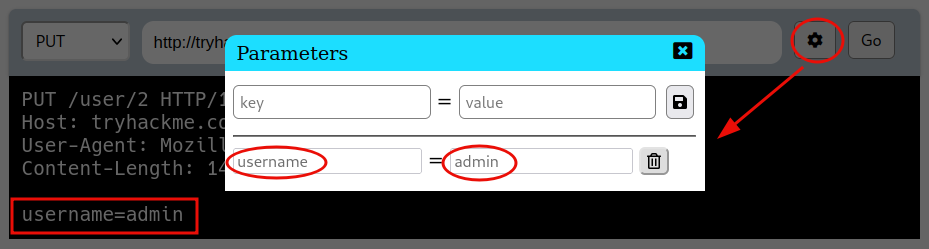
Figure 17: Adjusting parameter key and value
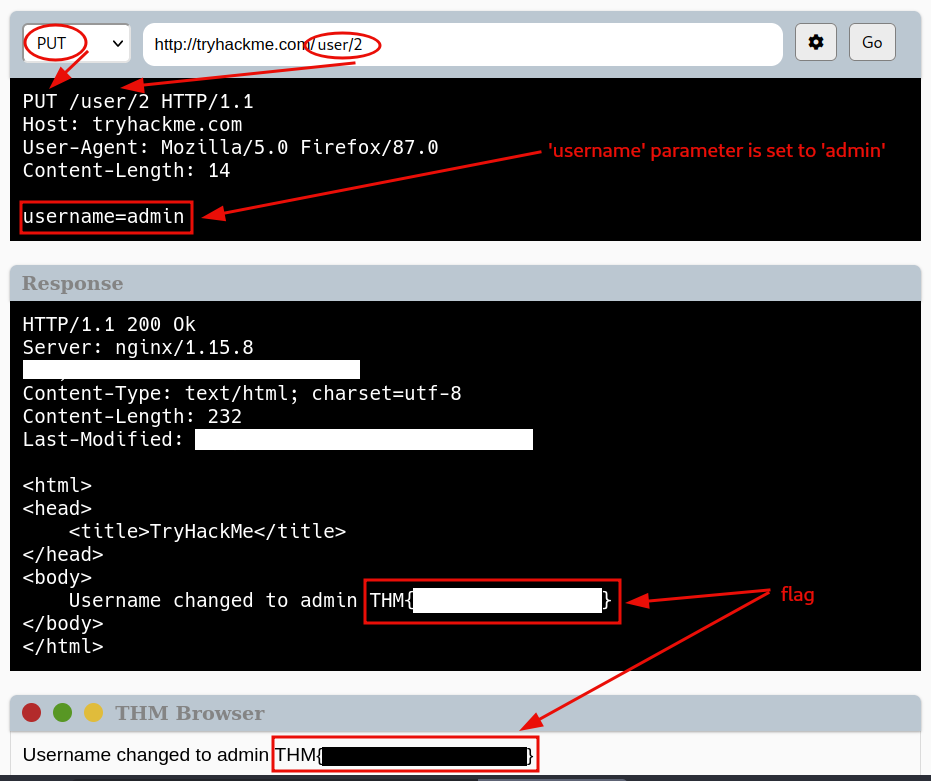
Figure 18: Using HTTPs PUT request method
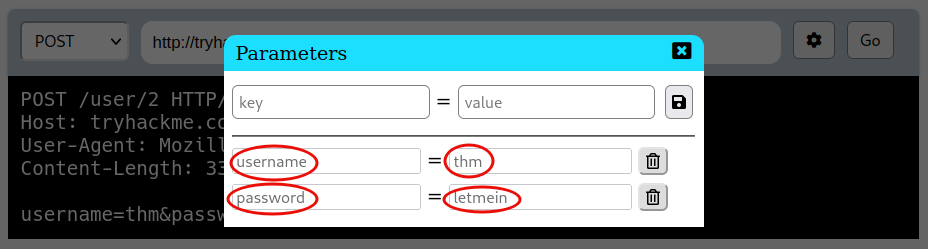
Figure 19: Specifying username-password pair using parameters
For the last question, we attempted to log in to the website by setting the appropriate parameter values.
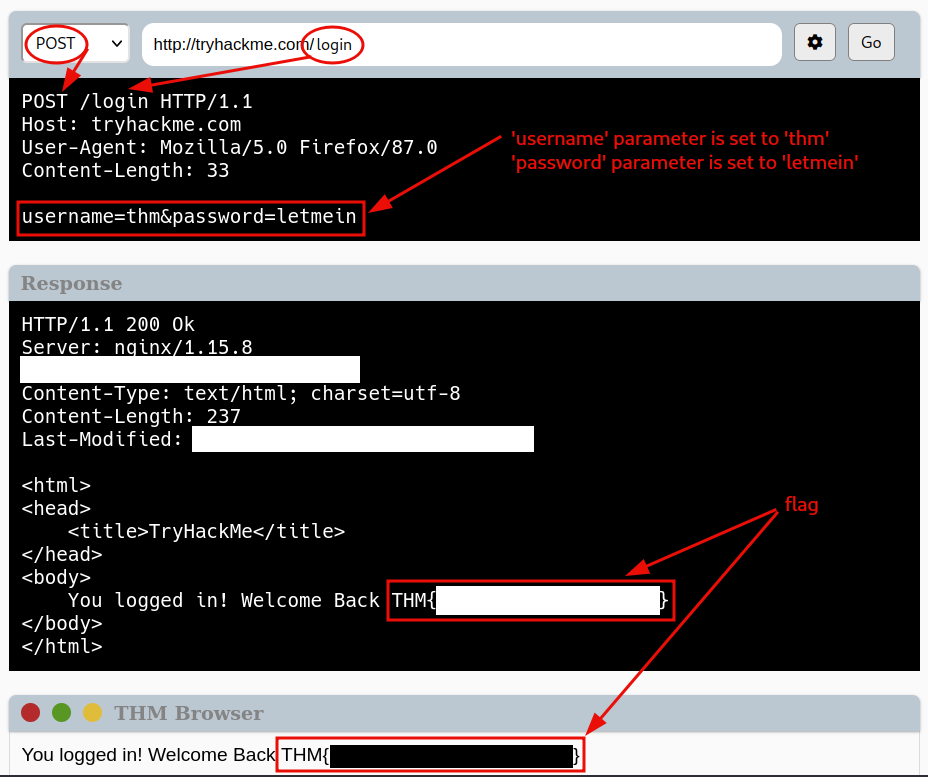
Figure 20: Log-in attempt with POST method
This marked the end of the room.
Question 1: Make a GET request to /room.
<redacted-flag>
Question 2: Make a GET request to /blog and, using the gear icon, set the id parameter to 1 in the URL field.
<redacted-flag>
Question 3: Make a DELETE request to /user/1.
<redacted-flag>
Question 4: Make a PUT request to /user/2 with the username parameter set to admin.
<redacted-flag>
Question 5: POST the username of thm and a password of letmein to /login.
<redacted-flag>