CHALLENGE INFORMATION
 | Platform: TryHackMe Path: Red Teaming Module: Post Compromise Room: The Lay of the Land |
DESCRIPTION:
Learn about and get hands-on with common technologies and security products used in corporate environments; both host and network-based security solutions are covered.
Introduction
In red team engagements, establishing a clear understanding of the compromised machine’s environment is crucial. This involves conducting extensive reconnaissance and enumeration to gather critical information.
The process begins with obtaining initial access, followed by post-exploitation activities aimed at learning about the network infrastructure, Active Directory structure, user and group access permissions, host-based security tools, network-based security solutions, and operational applications and services.
This comprehensive approach helps red teams map out potential attack vectors, mimic real-world adversary behaviors, and strategically exploit weaknesses. The goal is to create a detailed environment model, facilitating informed decision-making for subsequent phases of the engagement.
Question 1: Let’s start learning!
No answer needed
Deploy the VM
RDP Access Credentials:
- Username: kkidd
- Password: Pass123321@
We connected via RDP using the following command:
xfreerdp3 /u:"kkidd" /p:"Pass123321@" /v:<targetbox-ip> /dynamic-resolution /compression /network:auto /gfx:AVC420:on +clipboard -themes
Question 1: Let’s discuss the common network infrastructure in the next task!
No answer needed
Network Infrastructure
During a red team engagement on an unknown network, the primary objective upon gaining initial access is to determine the specific target system, its service function, and the overall network environment. This process involves meticulous enumeration of the compromised machine to gather essential information about its configuration, services, and connections.
Network Segmentation
A security measure that divides a network into multiple subnets, enhancing both security and management. It aims to safeguard sensitive data, such as customer records and financial information, from unauthorized access.
VLANs (Virtual Local Area Networks)
VLANs address issues such as broadcast storms and improve overall security. Within a VLAN, hosts can only communicate with others within the same network segment.
Internal Networks
Segmented based on device importance or data accessibility. Implement segmentation to manage traffic, enhance performance, and bolster security.
DMZ (Demilitarized Zone)
Acts as a buffer zone between the internal network and the public internet. Protects internal assets from direct internet access while allowing necessary traffic.
Network Enumeration
Checking TCP and UDP ports, established connections, routing tables, and ARP tables.
NETSTAT
netstat \?
# Displays protocol statistics and current TCP/IP network connections.
# -n: Displays addresses and port numbers in numerical form.
# -a: Displays all connections and listening ports.
netstat -na
# -r: Displays the routing table.
# -b: Displays the executable involved in creating each connection or listening port (requires elevated privileges).
ARP
# Displays and modifies the IP-to-Physical address translation tables used by address resolution protocol (ARP).
# help
arp
# -a: Displays current ARP entries by interrogating the current protocol data.
arp -a
# -v: Displays current ARP entries in verbose mode. All invalid entries and entries on the loop-back interface will be shown.
arp -a -v
Question 1: Read the above!
No answer needed
Active Directory (AD) Environment
Active Directory (AD) is a Windows-based directory service that centralizes user management, authentication, and authorization within a network. It organizes and manages network resources such as users, computers, printers, and more, providing essential information like job titles, contact details, passwords, and permissions.
Domain Controllers
A Windows server that provides Active Directory services and controls the entire domain. Centralized servers managing the domain, responsible for encryption, access control, resource sharing, and containing high-value data.
Organizational Units (OUs): Hierarchical containers within domains for organizing users and resources.
Active Directory Objects
Include users, groups, and hardware components like computers and printers. Domains maintain databases with object information.
Examples:
- Users: A security principal that is allowed to authenticate to machines in the domain.
- Computers: A special type of user account.
- GPOs: Collections of policies that are applied to other AD objects.
Other Structures
- AD Domains: Collections of AD components, with a forest being a group of interconnected domains.
- Service Accounts: Types include built-in local users, domain users, and managed service accounts.
- Domain Administrators: Manage domain settings and policies.
- AD Forest: A collection of domains that trust each other.
Knowing the AD environment is crucial for red teamers. By enumerating AD structures, they gain access to detailed information, facilitating lateral movement within networks during attacks.
Check if a Computer Is Part of an AD Domain
- Use
systeminfo | findstr Domain. - Note that if we get WORKGROUP in the domain section, then the machine is part of a local workgroup.
Questions and Answers
Use systeminfo | findstr Domain on the target to answer the following two questions.
Question 1: Before going any further, ensure the attached machine is deployed and try what we discussed. Is the attached machine part of the AD environment? (Y|N)
Y
Question 2: If it is part of an AD environment, what is the domain name of the AD?
thmredteam.com
Users and Groups Management
Understanding the AD environment is crucial once initial access to a compromised machine is achieved. This process involves identifying various types of AD service accounts and leveraging enumeration techniques to gather essential information.
AD Service Accounts
- Built-in Local Users: These are used for local system management and exist outside the AD environment.
- Domain User Accounts: Provide access to AD services, managed by domain administrators.
- Managed Service Accounts: Limited domain user accounts with higher privileges for managing AD services.
- Domain Administrators: User accounts that can manage information in an Active Directory environment. They manage information like AD configurations, users, groups, permissions, roles, and services.
AD Administrator Accounts
- BUILTIN\Administrator: Local admin access on a domain controller.
- Domain Admins: Administrative access to all resources in the domain.
- Enterprise Admins: Available only in the forest root.
- Schema Admins: Capable of modifying domain or forest configurations; useful for red teamers.
- Server Operators: Manage domain servers.
- Account Operators: Manage users that are not in privileged groups.
AD Enumeration
Distinguished Name (DN)
The Distinguished Name (DN) is a collection of comma-separated key and value pairs used to identify unique records within the directory. The DN consists of Domain Component (DC), OrganizationalUnitName (OU), Common Name (CN), and others.
The following is an example of a DN—CN=User1,CN=Users,DC=thmredteam,DC=com—which can be visualized as follows:
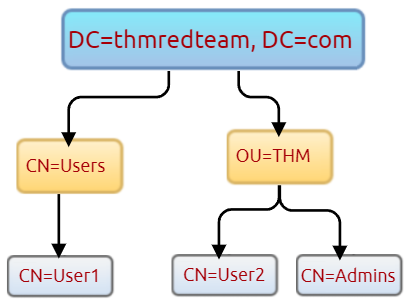
Figure 1: Distinguished Name hierarchy
AD enumeration examples:
# Retrieve all Active Directory user accounts within the current domain
Get-ADUser -Filter *

# Specify a Common-Name (CN) and list users that are part of Users
Get-ADUser -Filter * -SearchBase "CN=Users,DC=THMREDTEAM,DC=COM"

# Specify an OU and list users that are part of THM
Get-ADUser -Filter * -SearchBase "OU=THM,DC=THMREDTEAM,DC=COM"
Questions and Answers
Simply run Get-ADUser -Filter * -SearchBase "OU=THM,DC=THMREDTEAM,DC=COM" in PowerShell to answer the next two questions.
Question 1: Use the ‘Get-ADUser -Filter * -SearchBase’ command to list the available user accounts within THM OU in the thmredteam.com domain. How many users are available?
6
Question 2: Once you run the previous command, what is the UserPrincipalName (email) of the admin account?
Host Security Solutions
Antivirus Software (AV)
Antivirus software is designed to detect, monitor, and prevent malicious software by scanning files and systems. Regular updates are necessary as the software relies on virus definitions, which are matched against known signatures. Key features include:
Background Scanning
- Antivirus software works in real time and scans all open and used files in the background.
- Full System Scan: Scans the whole system.
- Virus Definitions: Database of known malware signatures used for detection.
Detection Techniques
- Signature-based: Uses a database of known malicious signatures to identify threats.
- Heuristic-based: Utilizes machine learning to analyze code or API usage in real time.
- Behavior-based: Monitors for abnormal activities like registry changes or process modifications.
Enumerating AV Software
Note that Windows Servers may not have the SecurityCenter2 namespace; this works only on Windows workstations.
WMIC
wmic /namespace:\\root\securitycenter2 path antivirusproduct
POWERSHELL
Get-CimInstance -Namespace root/SecurityCenter2 -ClassName AntivirusProduct
Microsoft Windows Defender
A pre-installed antivirus tool designed to protect endpoints. It employs advanced algorithms, including machine learning and big-data analysis, to detect and combat malware and viruses.
Protection Modes
- Active Mode: Default setting where it functions as the primary antivirus, offering real-time protection and remediation.
- Passive Mode: Used when a third-party antivirus is installed, acting as a secondary tool that scans files but does not remove threats; therefore, no remediation occurs.
- Disable Mode: Disabled or removed from the system, preventing its operation.
Enumerating Defender
Check the service state:
Get-Service WinDefend
Check if Defender is enabled:
Get-MpComputerStatus | select RealTimeProtectionEnabled
# Without specifying, it provides the current status of all security solution elements.
Host-Based Firewall
A security tool installed on a machine designed to protect it by controlling inbound and outbound network traffic. It acts as a gatekeeper, allowing only trusted devices on the same network while blocking unauthorized access. It is crucial for preventing unauthorized access.
Key Features
- Can monitor and manage network traffic at the network layer.
- Can block malicious or untrusted packets, such as ICMP requests in a
pingcommand. - Can inspect higher OSI layers (e.g., application layer) to detect and block attacks like SQL injection.
Enumerating Firewall Settings
# Check the profile settings
Get-NetFirewallProfile | Format-Table Name, Enabled

# Disabling firewall profiles (requires admin privileges)
Set-NetFirewallProfile -Profile Domain, Public, Private -Enabled False

# Check firewall rules
Get-NetFirewallRule | select DisplayName, Enabled, Description

# To check and verify what exactly the firewall blocks, use Test-NetConnection or TcpClient
# Test inbound connection without extra tools
Test-NetConnection -ComputerName 127.0.0.1 -Port 80
Questions and Answers
Question 1: Enumerate the attached Windows machine and check whether the host-based firewall is enabled or not! (Y|N)
N
We checked which firewall profiles are enabled. It appears that none are active.
PS C:\Users\kkidd> Get-NetFirewallProfile | format-table name, enabled
...
name    Enabled
----    -------
Domain    False
Private   False
Public    False
...
PS C:\Users\kkidd>
Question 2: Using PowerShell cmdlets such as Get-MpThreat can provide us with threat details that have been detected using MS Defender. Run it and answer the following: What is the file name that causes this alert to be recorded?
PowerView.ps1
We checked this with Get-MpThreat.
PS C:\Users\kkidd> Get-MpThreat
...
CategoryID       : 34
...
Resources        : {file:_C:\Users\kkidd\Desktop\PowerView.ps1,
                   containerfile:_C:\Users\kkidd\Desktop\PowerView.ps1,
                   file:_C:\Users\kkidd\Desktop\PowerView.ps1->(UTF-8)}
RollupStatus     : 1
...
PS C:\Users\kkidd>
Question 3: Enumerate the firewall rules of the attached Windows machine. What is the port that is allowed under the THM-Connection rule?
17337
We checked all firewall rules and filtered for the THM-Connection string.
PS C:\Users\kkidd> Get-NetFirewallRule | findstr "THM-Connection"
DisplayName           : THM-Connection
Description           : THM-Connection inbound to 17337 Port!
PS C:\Users\kkidd>
Question 4: In the next task, we will keep discussing the host security solution. I’m ready!
No answer needed
Security Event Logging and Monitoring
Security event logging and monitoring are crucial tools for system administrators and security teams to monitor and analyze activities within a network or on individual machines.
Windows operating systems log events categorized by types such as application, system, security, and services. These logs help identify installed components like Active Directory and DNS servers. In corporate settings, log agent software is employed to collect logs from various sensors, aiding network monitoring and incident analysis.
Enumerating Event Logs
# Check the available event log categories
Get-EventLog -List
System Monitor (Sysmon)
A tool from Microsoft’s Sysinternals suite, Sysmon is not installed by default but can be started to log various system events. These logs are valuable for system administrators and security teams (blue teamers) in detecting malicious activities and aiding in troubleshooting.
Key features include monitoring processes, network connections, file modifications, remote threats, process and memory access, and more. It also allows custom rule creation for specific monitoring needs.
Enumerating Sysmon
# Check for processes named Sysmon
Get-Process | Where-Object { $_.ProcessName -eq "Sysmon" }
# Check for services referencing sysmon
Get-CimInstance win32_service -Filter "Description = 'System Monitor service'"
# Check for services referencing sysmon
Get-Service | where-object {$_.DisplayName -like "*sysm*"}
# Check the Windows registry
reg query HKLM\SOFTWARE\Microsoft\Windows\CurrentVersion\WINEVT\Channels\Microsoft-Windows-Sysmon/Operational
If installed and operational, check its configuration to understand more.
# Look for its config file
# Example was located at "c:\tools\sysmon\sysmonconfig.xml"
findstr /si '<ProcessCreate onmatch="exclude">' C:\tools\*
HIDS and HIPS
Host-based Intrusion Detection Systems (HIDS) are software tools designed to monitor and detect suspicious activities on a host computer.
Operation Methods
- Signature-based Detection: Identifies threats by matching known signatures using checksums and message authentication.
- Anomaly-based Detection: Flags unusual behaviors, such as abnormal bandwidth usage, protocols, or ports.
Host-based Intrusion Prevention Systems (HIPS) extend this functionality by preventing malicious activities through features like auditing log files, monitoring processes, and protecting system resources.
HIPS combines tools such as antivirus, behavior analysis, network protection, and application firewalls.
EDR
Endpoint Detection and Response (EDR) is an advanced cybersecurity solution designed to detect and respond to malicious activities on individual endpoints. It monitors for threats such as malware, exploit chains, and ransomware in real time, providing detailed analytics for investigation and response.
It provides comprehensive endpoint protection by combining threat detection with response capabilities to safeguard against evolving cyber threats. Popular EDR solutions include Cylance, CrowdStrike, Symantec, and SentinelOne.
Enumerating EDR Products
Scripts like Invoke-EDRChecker and SharpEDRChecker help enumerate security products on a machine by examining file metadata, processes, DLLs, services, and drivers.
Even if an attacker bypasses initial detection, EDR continues to monitor and can block actions upon detecting anomalies.
Question 1: We covered some of the common security endpoints we may encounter during the red team engagement. Let’s discuss the network-based security solutions in the next task!
No answer needed
Network Security Solutions
Network Firewall
A critical security component that monitors and controls incoming and outgoing network traffic based on predefined rules and policies. It acts as the first line of defense against untrusted external traffic, ensuring only authorized access is granted to a network or specific applications.
Modern firewalls are often integrated into network routers or security appliances, offering robust features that enhance network security and data protection.
Firewall Types
- Packet-filtering firewalls: These inspect traffic at the network layer, allowing or blocking packets based on criteria such as source IP address.
- Proxy firewalls: Function as intermediaries, managing network traffic between trusted internal networks and external sources by providing security services like authentication and encryption.
- NAT firewalls: Combine network address translation with firewall capabilities to hide internal IP addresses and control access while translating private IPs to public ones.
- Web application firewalls (WAFs): Protect web applications from cyber threats by analyzing traffic and enforcing rules based on application logic, mitigating risks like SQL injection and XSS.
SIEM
Security Information and Event Management (SIEM) is an integral solution that combines Security Information Management (SIM) and Security Event Management (SEM) to enable real-time monitoring, analysis, and response to security events.
It helps organizations proactively identify and mitigate potential threats by aggregating log data from various network sources and applying advanced analytics to detect unusual patterns or behaviors. SIEM systems are capable of addressing a wide range of threats, including insider threats, security vulnerabilities, phishing attacks, web-based threats, DDoS attacks, and data exfiltration.
Key Functions
- Log Management: Centralized collection of logs from across the network for comprehensive monitoring.
- Event Analytics: Utilizes AI and threat intelligence to detect abnormal activities, enabling timely incident response.
- Incident Monitoring and Alerts: Notifications for potential threats, allowing administrators to take action before damage occurs.
- Compliance Reporting: Generates real-time reports to aid in decision-making and ensure regulatory compliance.
Popular SIEM tools include Splunk, LogRhythm NextGen SIEM Platform, SolarWinds Security Event Manager, and Datadog Security Monitoring.
IDS and IPS
Network-based Intrusion Detection Systems (NIDS) and Intrusion Prevention Systems (NIPS) are network security solutions designed to monitor and protect enterprise networks from cyber threats. Both systems analyze network traffic for suspicious activities or known malicious patterns.
IDS
Focuses on detecting potential intrusions by monitoring network packets for anomalies. It alerts administrators, who then need to manually intervene or use additional tools to address the threat.
IPS
Enhances IDS functionality by automatically blocking or rejecting packets deemed suspicious based on predefined policies and rules, preventing potential breaches.
Common enterprise solutions:
- Palo Alto Networks
- Cisco’s Next-Generation Security System
- McAfee Network Security Platform (NSP)
- Trend Micro TippingPoint
- Suricata
These systems play a crucial role in network security by providing real-time threat detection and response capabilities.
Question 1: Read the above!
No answer needed
Applications and Services
Installed Applications
Enumerating a system’s installed applications involves identifying software by name and version. The goal is to identify potentially vulnerable software that can be exploited to gain unauthorized access or escalate privileges. This enumeration may reveal plain-text credentials, which could belong to other systems or services.
Enumerating Installed Applications
# List all installed applications and their versions
wmic product get name,version

# Look for hidden directories
Get-ChildItem -Hidden -Path C:\Users\kkidd\Desktop\
Services and Processes
Enumerating running services and processes on a target system is a critical step and involves identifying software executables and their configurations to uncover potential vulnerabilities, especially misconfigured permissions that may escalate user access levels.
Key objectives:
- Identifying Running Services: To detect Windows services and applications running within their own sessions.
- Discovering Misconfigured Permissions: To identify vulnerabilities in service configurations that could be exploited.
- Gathering Process Information: To gather details about custom-developed applications or sensitive information associated with running processes.
Enumerating Services and Processes
# List running services (started)
net start

# Get more info about a particular service (here: THM Demo)
# Example service path: c:\windows\thm-demo.exe
wmic service where "name like 'THM Demo'" get Name,PathName

# Once the process is identified, check the process
# This will provide us with the process ID (here: 3212)
Get-Process -Name thm-demo

# Check for listening ports by that process ID
netstat -noa |findstr "LISTENING" |findstr "3212"
This enumeration helps in understanding the system’s configuration, revealing potential escalation vectors and areas for further investigation.
Sharing Files and Printers
You might find misconfigured access permissions and useful information about other accounts and systems.
Internal Services, DNS, Local Web Applications, etc.
Common internal services: DNS services, email services, network file shares, web applications, and database services.
Questions and Answers
Question 1: Finally, we can see it is listening on port 8080. Now try to apply what we discussed and find the port number for THM Service. What is the port number?
13337
In summary, we checked the started services, identified the interesting service, and obtained more information about it. Then we examined the identified process and checked for listening ports associated with its PID.
Here is the complete terminal interaction, shortened for brevity:
PS C:\Users\kkidd> net start
These Windows services are started:
...
   Active Directory Web Services
   ...
   Themes
   THM Service
   Time Broker
...
PS C:\Users\kkidd> wmic service where "name like 'THM Service'" get Name,PathName
Name         PathName
THM Service  c:\Windows\thm-service.exe
...
PS C:\Users\kkidd> Get-Process -name thm-service
...
Handles  NPM(K)    PM(K)      WS(K)     CPU(s)     Id  SI ProcessName
-------  ------    -----      -----     ------     --  -- -----------
     78       9    12668       5612              2784   0 thm-service
...
PS C:\Users\kkidd> netstat -noa | findstr "LISTENING" | findstr "2784"
  TCP    0.0.0.0:13337          0.0.0.0:0              LISTENING       2784
  TCP    [::]:13337             [::]:0                 LISTENING       2784
PS C:\Users\kkidd>
Question 2: Visit the localhost on the port you found in Question #1. What is the flag?
<redacted-flag>
We used curl to retrieve the flag.
PS C:\Users\kkidd> curl http://localhost:13337
...
StatusCode        : 200
StatusDescription : OK
Content           : Hi the flag is: THM{<redacted-flag>}
RawContent        : HTTP/1.1 200 OK
                    Content-Length: 44
                    Content-Type: text/plain; charset=utf-8
...
                    Hi the flag is: THM{<redacted-flag>}
Forms             : {}
Headers           : {[Content-Length, 44], [Content-Type, text/plain;
                    charset=utf-8], [...]}
Images            : {}
InputFields       : {}
Links             : {}
ParsedHtml        : System.__ComObject
RawContentLength  : 44
...
PS C:\Users\kkidd>
Question 3: Now enumerate the domain name of the domain controller, thmredteam.com, using the nslookup.exe, and perform a DNS zone transfer. What is the flag for one of the records?
<redacted-flag>
Step 1: Run nslookup.exe.
Step 2: Specify the DNS server to query and set it to our target box.
# server NAME : set default server to NAME, using current default server
server <targetbox-ip>
Step 3: Attempt the DNS zone transfer on the domain that we found in AD.
# ls : list addresses in DOMAIN
# -d : list all records
ls -d thmredteam.com
Step 4: Retrieve the flag from the records.
PS C:\Users\kkidd> nslookup.exe
Default Server:  ip-10-0-0-2...compute.internal
Address:  10.0.0.2

> server 10.10.229.147
Default Server:  ip-10-10-229-147...compute.internal
Address:  10.10.229.147

> ls -d thmredteam.com
[ip-10-10-229-147...]
thmredteam.com.                SOA    ad.thmredteam.com hostmaster.thmredteam.com. (749 900 600 86400 3600)
thmredteam.com.                A      10.10.129.59
...
flag                           TXT             "THM{<redacted-flag>}"
...
www                            A      10.10.141.51
thmredteam.com.                SOA    ad.thmredteam.com hostmaster.thmredteam.com. (749 900 600 86400 3600)
>
Conclusion
Question 1: Hope you enjoyed the room and keep learning!
No answer needed