THM | AoC 2025 | Day 16

Day-16: Forensics - Registry Furensics
SUMMARY
On Day 16 we investigate a compromised system using Registry Explorer to analyze offline registry hives. We start by loading the registry hives from
dispatch-srv01and navigate through key forensic locations. We check the "SOFTWARE" hive's "Uninstall" keys and identify that "DroneManager Updater" was installed before the abnormal activity began.
We then examine the "UserAssist" registry and find where the user launched the malicious installer from. Finally, we check the "Run" registry key and discover the persistence mechanism that the attacker configured to maintain startup access.

Forensics - Registry Furensics
- TL;DR: Learn what the Windows Registry is and how to investigate it.
- Original Room: TryHackMe | Advent of Cyber 2025 | DAY 16 - Forensics - Registry Furensics
STORYLINE
"TBFC is under attack. McSkidy's well-trained team is conducting forensic analysis on
dispatch-srv01, a critical drone-delivery system compromised by attackers. The team is splitting into specialized groups to investigate logs, memory dumps, file systems, and registry data — our focus is the registry analysis."
THEORY
Overview and Core Function
The Windows Registry is the operating system's configuration database, functioning as the "brain" of Windows by storing all essential system and user information needed for proper OS operation. Unlike the human brain's single physical location, the Registry is distributed across multiple separate files called Hives, each storing different categories of configuration data.
Registry Hives
- SYSTEM | Services, mounted devices, boot configuration, drivers, hardware setting
C:\Windows\System32\config\SYSTEM
- SECURITY | Local security policies, audit policy settings
C:\Windows\System32\config\SECURITY
- SOFTWARE | Installed programs, OS version info, autostarts, program settings
C:\Windows\System32\config\SOFTWARE
- SAM | Usernames, password hashes, group memberships, account statuses
C:\Windows\System32\config\SAM
- NTUSER.DAT | Recent files, user preferences, user-specific autostarts
C:\Users\username\NTUSER.DAT
- USRCLASS.DAT | Shellbags, jump lists
C:\Users\username\AppData\Local\Microsoft\Windows\USRCLASS.DAT
Registry Root Keys
Windows organizes Registry Hives into structured Root Keys displayed in the Registry Editor. The mapping between hives and root keys is as follows:
- SYSTEM → HKEY_LOCAL_MACHINE\SYSTEM or
HKLM\SYSTEM - SECURITY → HKEY_LOCAL_MACHINE\SECURITY or
HKLM\SECURITY - SOFTWARE → HKEY_LOCAL_MACHINE\SOFTWARE or
HKLM\SOFTWARE - SAM → HKEY_LOCAL_MACHINE\SAM or
HKLM\SAM - NTUSER.DAT → HKEY_USERS<SID> and HKEY_CURRENT_USER or
HKU\<SIDandHKCU - USRCLASS.DAT → HKEY_USERS<SID>\Software\Classes or
HKU\<SID>\Software\Classes
Key organizational points:
- HKLM (HKEY_LOCAL_MACHINE) contains most system-wide hives SYSTEM, SOFTWARE, SECURITY, SAM
- HKU/HKCU (HKEY_USERS)/(HKEY_CURRENT_USER) contain user-specific hives NTUSER.DAT, USRCLASS.DAT
- HKCR/HKCC HKEY_CLASSES_ROOT and HKEY_CURRENT_CONFIG are dynamically populated during Windows runtime and are not backed by separate hive files
Accessing Registry Data
Registry Hives contain binary data and cannot be opened directly by double-clicking their files. Windows provides the built-in Registry Editor tool (accessible via search bar) to view registry data in a human-readable hierarchical format organized by root keys and subkeys.
Navigation Examples
- Connected USB Devices
- Navigate to
HKEY_LOCAL_MACHINE\SYSTEM\CurrentControlSet\Enum\USBSTOR - Displays: USB device information including make, model, device ID, manufacturer identification, and unique device identifiers
- Navigate to
- User-Run Programs
- Navigate to
HKEY_CURRENT_USER\Software\Microsoft\Windows\CurrentVersion\Explorer\RunMRU - Displays: Commands executed via Win+R Run dialog
- Navigate to
Registry Forensics
Registry forensics is the process of extracting and analyzing evidence from the Registry for Windows digital forensic investigations, where analysts examine registry data alongside event logs, file system data, and memory data to construct incident timelines.
Key Forensic Registry Locations
- Recently accessed GUI-launched applications
HKCU\Software\Microsoft\Windows\CurrentVersion\Explorer\UserAssist
- Paths and locations typed in Explorer address bar
HKCU\Software\Microsoft\Windows\CurrentVersion\Explorer\TypedPaths
- Paths Application file paths
HKLM\Software\Microsoft\Windows\CurrentVersion\App
- Search terms entered in Explorer search bar
HKCU\Software\Microsoft\Windows\CurrentVersion\Explorer\WordWheelQuery
- Startup programs configured for automatic launch
HKLM\Software\Microsoft\Windows\CurrentVersion\Run- Recently accessed files
HKCU\Software\Microsoft\Windows\CurrentVersion\Explorer\RecentDocs
- Computer hostname
HKLM\SYSTEM\CurrentControlSet\Control\ComputerName\ComputerName- Installed programs inventory
HKLM\SOFTWARE\Microsoft\Windows\CurrentVersion\Uninstall
Registry Editor (built-in) limitations
- Cannot open offline hives (required for forensic analysis to prevent system modification)
- Displays some key values in unreadable binary format
Specialized registry forensics tools (such as Registry Explorer) parse binary data and enable offline analysis without risk of modifying the original system evidence.
Dirty Hives
Registry Hives that were collected from live systems and may have incomplete transactions. Use clean loading on them:
- Reistry Explorer > File > Load hive > Load Hives pop-up > Select desired hive file > HOLD SHIFT then press Open
PRACTICAL
- Tool: Registry Explorer
- Hives: "C:\Users\Administrator\Desktop\Registry Hives"
- Investigated Host:
dispatch-srv01 - Time Range: from 2025.11.21 on
Preparation
Start the target VM, open up up Registry Explorer, load the registry hives for dispatch-srv01 by
- Registry Explorer > "File" tab > "Load hive" > Select ALL files in "C:\Users\Administrator\Desktop\Registry Hives" > Press SHIFT and "Open".
Q & A
Question-1: What application was installed on the dispatch-srv01 before the abnormal activity started?
DroneManager Updater
Head over to "Available bookmarks", under the loaded "SOFTWARE" hive entries ("C:\Users\Administrator\Desktop\Registry Hives\SOFTWARE") select "Uninstall".
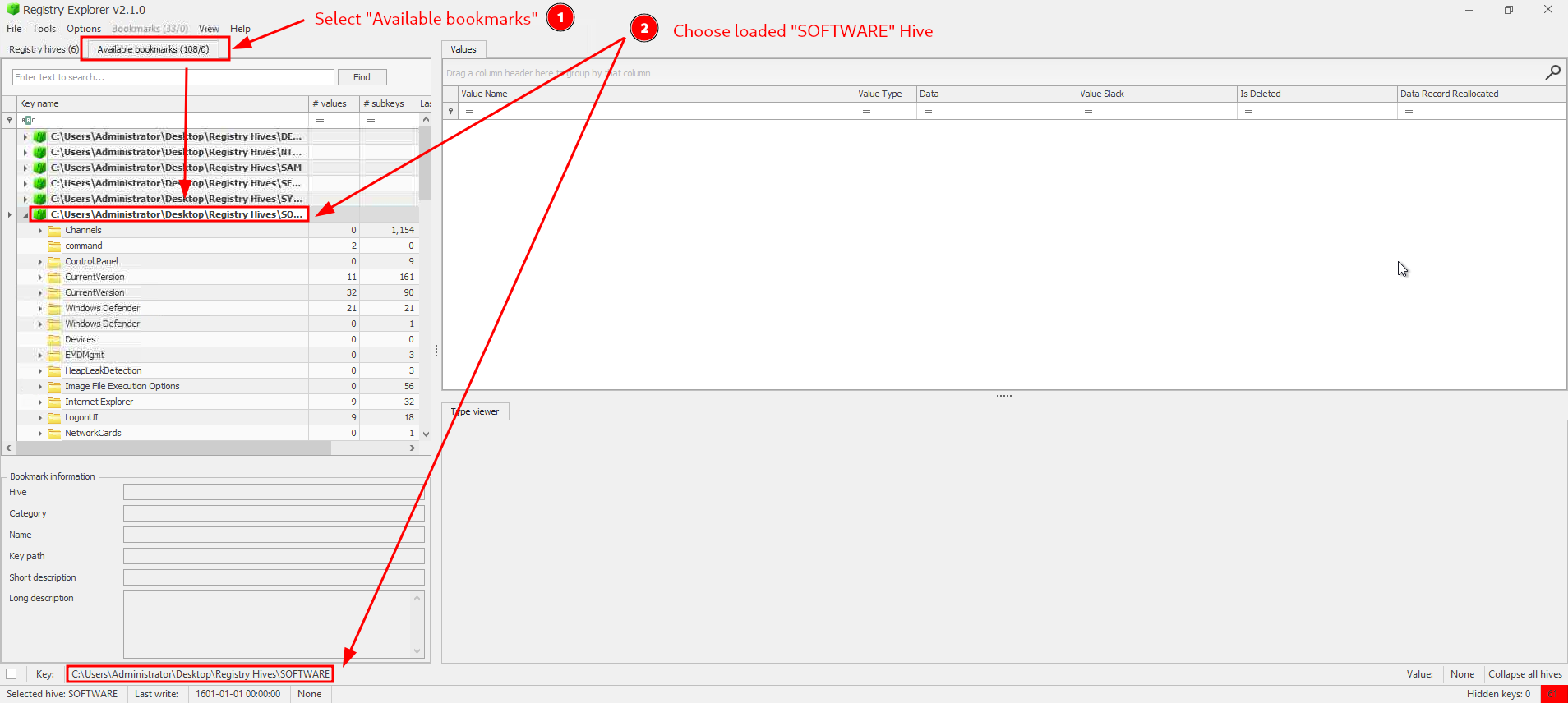
Figure 1: Loading the SOFTWARE hive and it's keys
Note, there are TWO "Uninstall" keys:
- one with the last timestamp entry on 2025-10-20 20:16:40 with "Microsoft EdgeWebView" and an other
- with the timestamp entry of 2025-10-21 20:52:37 by "DroneManager Updater (64bit)".
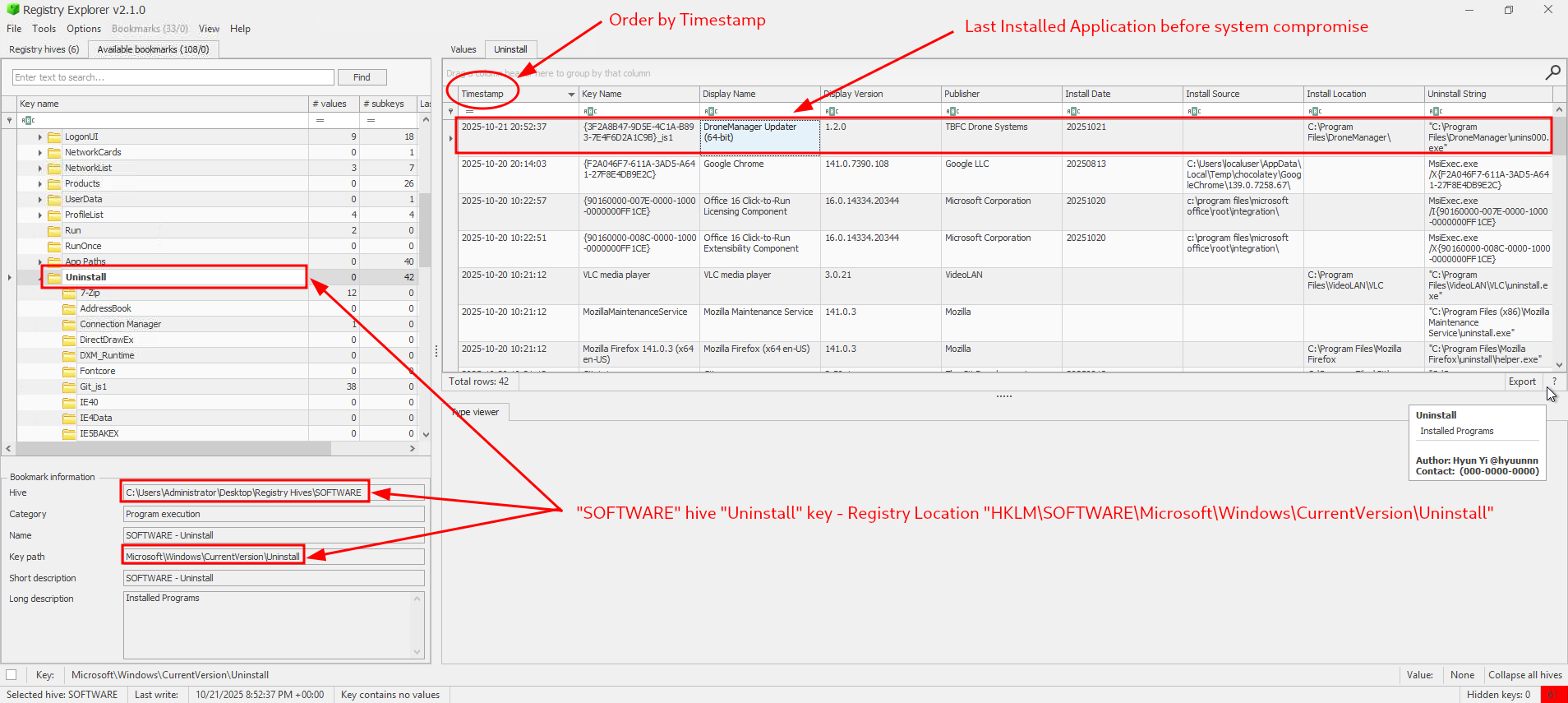
Figure 2: Last installed application before System Compromise
Given that the exercise EXPLICITLY notes, that the time range starts only from 2025.11.21 on, the one on 2025-10-21 20:52:37 by "DroneManager Updater (64bit)" must be the clear answer here.
Question-2: What is the full path where the user launched the application (found in question 1) from?
C:\Users\dispatch.admin\Downloads\DroneManager_Setup.exe
We can check the recently accessed GUI-launched applications via "HKCU\Software\Microsoft\Windows\CurrentVersion\Explorer\UserAssist", orient ourself by the "Program Name" and the "Last Executed" columns to further narrow down our search.
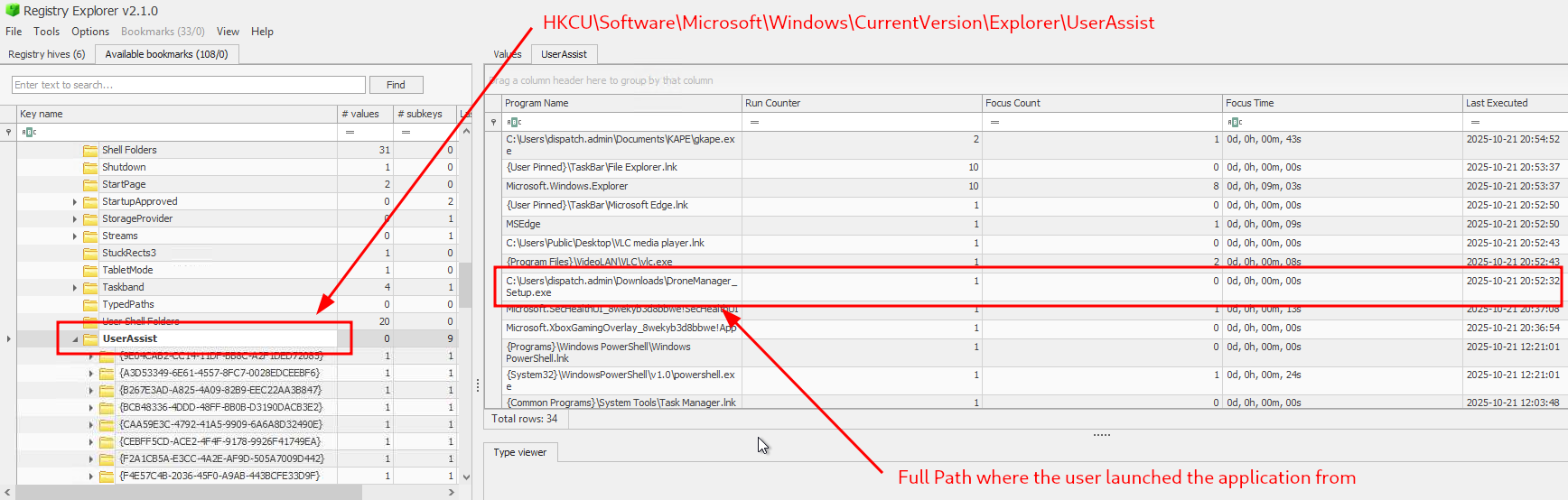
Figure 3: Full Path where the user launched the appliation from
Question-3: Which value was added by the application to maintain persistence on startup?
"C:\Program Files\DroneManager\dronehelper.exe" --background
First, we know that the keys for startup programs that are configured for automatic launch is stored in "HKLM\Software\Microsoft\Windows\CurrentVersion\Run", so let's head over there:
- "C:\Users\Administrator\Desktop\Registry Hives\SOFTWARE" > "CurrentVersion" > "Run"
There are only two entries configured here and the one with the name "drone_helper" should be the clear winner.
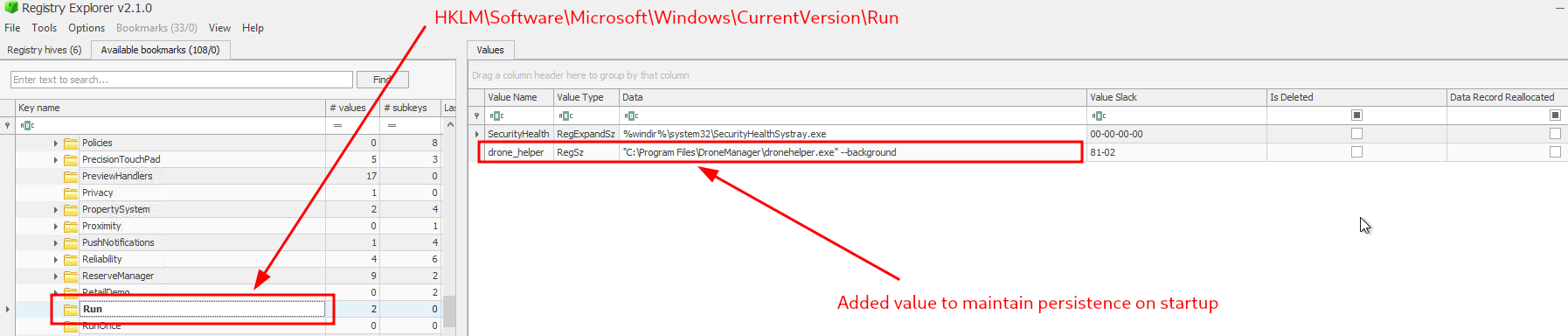
Figure 4: Configured to maintain persistance on startup
Question-4: If you enjoyed today's room, feel free to check out the Expediting Registry Analysis room.
No answer needed